 ZigBeeForDomoticZ plugin Wiki
The Web interface - Network section - Mesh graph
This page describes the Mesh graph page of the plugin Web interface, available from plugin
version 9.1.008. It sits beside the two older charts documented in
Network section, which are unchanged: the Topology wheel and the Topology
graph still read the /topologie report, while the Mesh graph reads a second, richer report,
/topology-scan.
The page is reached from the WebUI menu: Network > Mesh graph (/network/mesh).
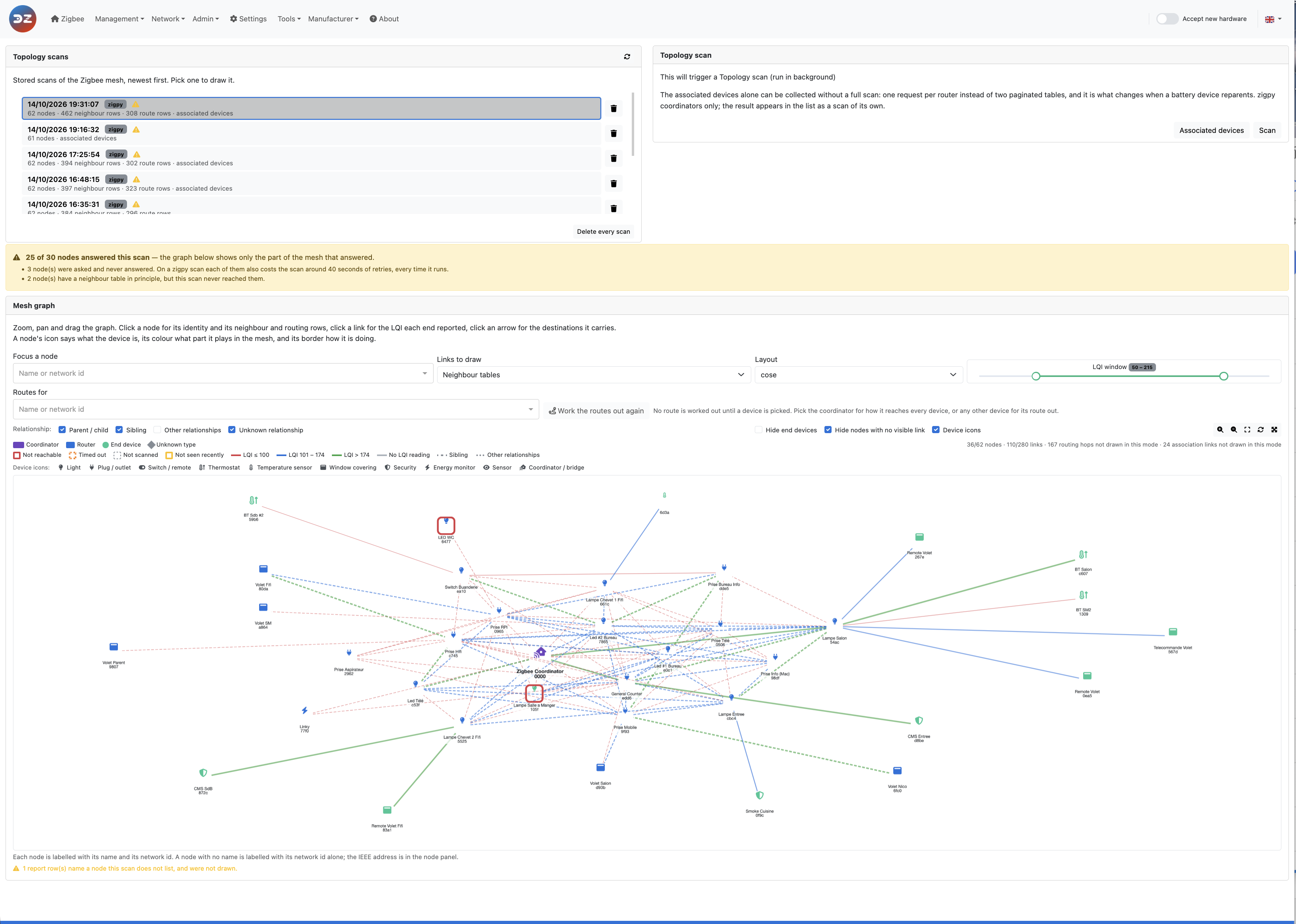
The screenshots on this page are rendered from one real scan of a 62-device ZNP network - 25 of
the 30 nodes that could answer did - so what they show is a real mesh rather than a mock-up. Each
node carries the name you gave the device and its network id underneath; a device you never named
is labelled with its network id alone. These pictures may have changed since this documentation was
written.
Contents:
- The screen at a glance
- What “mesh” means
- Three tables, three different questions
- The relationships
- Routing versus Neighbours
- Depth: how to read it, and what it is worth
- Computed routes
- Associated devices: a router and what is attached to it
- Layouts: what is best for what
- Filters and what they act on
- Reading the picture
- How a scan is performed
- Devices that are switched off, and other gaps
- Settings
- References
The screen at a glance
The page is three blocks, top to bottom:
- the Topology scans list, beside the Topology scan card that starts a new one - pick a
scan in the list to draw it (see How a scan is performed);
- the coverage banner, which says how many of the nodes that could answer this scan did - read
it before the graph (see Reading the coverage banner);
- the Mesh graph card, shown below with a node selected.
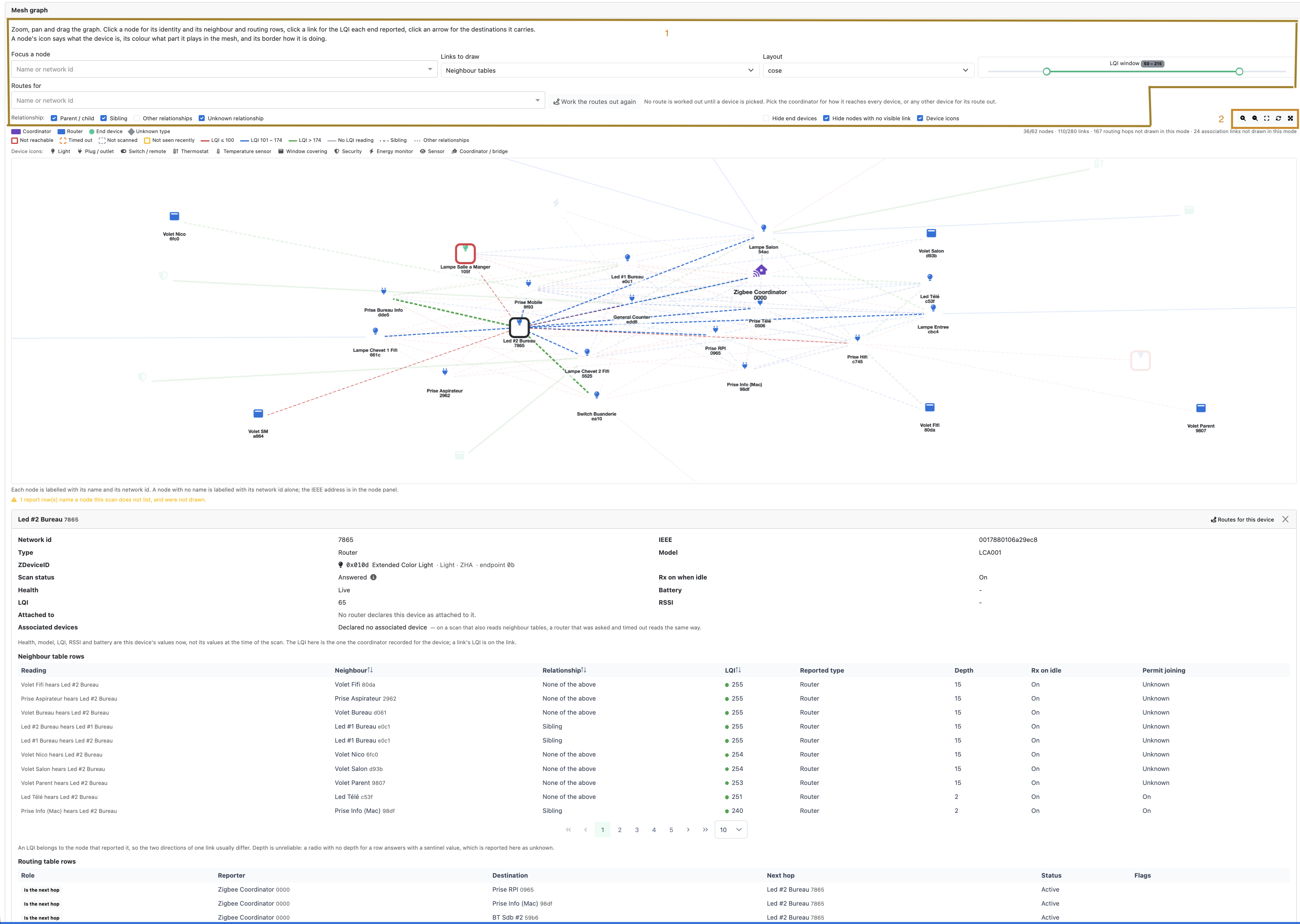
The Mesh graph card with the router Led #2 Bureau clicked. The LQI window has been narrowed to
50 - 215 and Hide nodes with no visible link switched on, so this is not how the page opens.
The card reads from top to bottom. Each area is described in detail further down this page; this
section says what is where.
1. The controls
Area
What it does
More
Focus a node
Type a name or a network id: the graph centres on that device and fades the rest. The quickest way to find one device on a large mesh
Layouts
Links to draw
Which table is drawn: Neighbour tables, Routing tables, Both or Associated devices. A table the scan does not carry is greyed out
Three tables
Layout
How the nodes are placed - cose, concentric, breadthfirst, circle, grid. Positions only; the data is the same
Layouts
LQI window
Keeps only the neighbour links whose LQI falls inside the two handles. The badge shows the current window
A note on LQI
Routes for
Pick a device to see a computed route: the coordinator for how it reaches every device, any other device for its route out to the coordinator. Empty when the page opens, so nothing is drawn until you pick
Computed routes
Work the routes out again
Works the route for the device in Routes for out again, against the scan on screen. Greyed out while the field is empty. The text beside it says what the route on screen is
Computed routes
Back to the coordinator
Shown only while one device’s route is on screen: puts the coordinator back in Routes for, so the graph shows how it reaches every device
Computed routes
Relationship checkboxes
Parent / child, Sibling, Other relationships, Unknown relationship: which neighbour links are drawn, by what the reporting node says the neighbour is to it
The relationships
Hide end devices
Removes the leaves, to leave the backbone of routers
Filters
Hide nodes with no visible link
Removes whatever the other filters have left isolated
Filters
Device icons
Draws each node with the icon of what the device is, or as a plain shape
Reading the picture
2. The toolbar
The five buttons at the right, above the graph, from left to right:
Button
What it does
Zoom in / Zoom out
The same as the mouse wheel
Fit to view
Brings the whole graph back into the frame after zooming or panning
Recompute layout
Runs the current layout again - useful after dragging nodes around, or when a layout settled badly
Fill the screen
Puts the graph fullscreen. The same buttons stay available there, the last one becoming Leave fullscreen
3. The legend and the counters
- The legend on the left says how to read a node and a link: the colour of a node is its
role (coordinator, router, end device, unknown type), its border how it is doing (not
reachable, timed out, not scanned, not seen recently), the colour of a link its LQI band, and
its line style its relationship. The line underneath lists the device icons. See
Reading the picture.
- The counters on the right always read visible / total: in the screenshot, 36/62 nodes ·
110/280 links, then what the current mode does not draw - 167 routing hops not drawn in this
mode · 24 association links not drawn in this mode. A filter never hides the fact that it is
hiding something.
4. The graph
Zoom, pan and drag it. Each node carries its name and its network id; a node with no name carries
its network id alone. Click something to open its panel underneath:
- a node - the node panel described below;
- a link - the LQI each end reported, and whether only one end reported it
(Direction);
- an arrow, in the routing view - the destinations that hop carries.
The node clicked is drawn with a thick dark border, and its links stand out from the rest of the
mesh. In the screenshot Led #2 Bureau is the selected node; the red square is a different thing, a
device that is not reachable.
Under the graph, a line reminds how nodes are labelled, and an amber line counts the report rows
that could not be drawn because they name a node the scan does not list - see
Reading the picture.
5. The node panel
Clicking a node opens a panel under the graph, titled with its name and its network id. Two buttons
sit in its title bar:
- Routes for this device puts this device into Routes for and draws its route out to the
coordinator - see Computed routes;
- × closes the panel and clears the selection.
The panel has three parts.
The identity block. Network id and IEEE address, the type the node plays in the mesh and its
model, the ZDeviceID with the icon, family and endpoint it was resolved from, the Scan status
(the ⓘ beside it explains the value - Answered, Timed out, No neighbour table, Not scanned),
Rx on when idle, Health, Battery, LQI and RSSI. Then the association, from the
Associated devices table:
- Attached to - the router that declares this device as one of its own, or a line saying none
does, or a warning when more than one does (Contested devices);
- Associated devices - the devices this router declares, or Declared no associated device.
The note under the block matters: health, model, LQI, RSSI and battery are this device’s values
now, not at the time of the scan, and the LQI there is the one the coordinator recorded for the
device - a link’s own LQI is on the link.
Neighbour table rows. Every neighbour row that mentions this node, in either direction:
Column
What it holds
Reading
who measured what: “Volet Fifi hears Led #2 Bureau”. The same pair can appear twice, once per end - Led #2 Bureau hears Led #1 Bureau and Led #1 Bureau hears Led #2 Bureau
Neighbour
the node at the other end
Relationship
what the reporter says the neighbour is to it
LQI
the reporter’s reading, with its colour band
Reported type, Depth, Rx on idle, Permit joining
the rest of the row, as the reporter gave it
Neighbour, Relationship and LQI can be sorted by clicking their header. Ten rows are shown at
a time, and the selector beside the pager offers 10, 25 or 50. Read the Depth column as a whole
rather than row by row: a column of 15 is a radio with no depth to give - see
Depth.
Routing table rows. Every routing row in which this node plays a part, and the Role
column says which part:
Role
Meaning
Reports the route
this node’s own routing table: to reach that destination, I hand the frame to that next hop
Is the next hop
another node hands frames to this one - in the screenshot, the coordinator reaches Prise RPI, Prise Info (Mac) and others through Led #2 Bureau
Is the destination
another node holds a route to this one
Then Reporter, Destination, Next hop, the route Status, and the Flags - many-to-one,
memory constrained, route record required. See
Routing versus Neighbours for what they mean, and why a routing row
carries no LQI.
What “mesh” means
Zigbee is a mesh network, not a star. A frame does not have to reach the coordinator directly:
it can be relayed, hop by hop, by any mains-powered device on the way. That is what the word means
here - the network is a web of short radio links rather than a set of spokes, and it re-forms
itself around a link that degrades.
Three roles make that possible (Zigbee specification, and
Silicon Labs - Network Node Types):
Role
Also called
Relays frames
Keeps a neighbour table
Radio
Coordinator
ZC
yes
yes
always on
Router
ZR, FFD - Full-Function Device
yes
yes
always on
End device
ZED, RFD - Reduced-Function Device
no
no
often asleep
- The coordinator is your Zigbee key/dongle. There is exactly one, it formed the network and it
holds the keys.
- A router is usually a mains-powered device: a bulb, a plug, a wall switch, a repeater.
Routers are the mesh - they are what a frame hops through.
- An end device is usually battery-powered: a motion sensor, a door contact, a remote,
a thermostatic valve. It has no neighbour table, relays nothing, and spends most of its life with
its radio off. It talks to the network through exactly one router, its parent, which keeps
the frames addressed to it until it wakes up and polls.
Mains-powered does not always mean router
The word “usually” above is doing real work, and it is the first thing to check when a device is
not where you expect it in the graph.
A device is a router because it says it is - in the MAC capability it announces when it joins -
not because of how it is powered. Several common families are mains-powered and still announce
themselves as reduced-function, so they relay nothing and keep no neighbour table:
- Switches wired without neutral. They power themselves through the load, with very little
current to spare, and a good number of them are built not to route. Mechanically they are a wall
switch like any other; in the mesh they are a leaf.
- Models that are simply built that way, whatever their wiring - Livolo switches and the
Aqara Opple remotes are the two the plugin deals with by name, and both announce
reduced-function.
The plugin believes the device’s own announcement, which is the right call: it gets these models
right without a list of exceptions. For the graph this means such a device is drawn as an end
device, is reported as “No neighbour table” on a scan, and - like any end device - appears in
the associated devices view under the router it is attached to rather than as part of the backbone.
So a room whose only “mains-powered” device is a no-neutral switch has no relay in it, however
many Zigbee devices are on the wall. That is worth knowing before blaming the radio.
Two consequences run through the whole of this page:
- The backbone is made of routers only - mains-powered, and announcing themselves as routers.
Every battery device, and every mains device that does not route, hangs off it.
- A sleepy end device cannot be asked anything. Whatever you learn about it, you learn from the
router that answers on its behalf.
The Mesh graph draws that backbone, the links between the nodes that form it, and - when the scan
collected it - which router each battery device is attached to.
Three tables, three different questions
A Zigbee node does not know “the network”. It knows a few tables about its own surroundings, and a
topology report is those tables, collected node by node and stitched together. The Mesh graph can
draw three of them, and they answer three genuinely different questions:
Table
Zigbee request
Question it answers
Carries
Neighbours
Mgmt_Lqi_req (ZDP cluster 0x0031), answered by Mgmt_Lqi_rsp (0x8031, spec §2.4.4.3.2)Who can this node hear, and how well?
LQI, relationship, device type, depth, Rx-on-when-idle, permit-joining
Routing
Mgmt_Rtg_req (0x0032), answered by Mgmt_Rtg_rsp (0x8032, §2.4.4.3.3)To reach X, who does this node hand the frame to?
destination, next hop, route status, many-to-one / memory-constrained / route-record flags
Associated devices
NWK_addr_req with RequestType 0x01 - the extended address request - answered by NWK_addr_rsp with NumAssocDev / NWKAddrAssocDevListWhich devices are this router’s children?
a plain list of network addresses, nothing else
They overlap, but none of them is a substitute for another: two nodes can be neighbours with no
route between them, a route can exist through a node that is not in the neighbour table, and the
the associated device list is in neither.
The Links to draw control on the page selects which of them is drawn. They are exclusive modes
rather than overlays, because a pair of nodes can appear in all three at once and the picture would
say nothing.
Every control this page mentions - what it acts on, and what it is set to when the page opens -
is listed together under Filters and what they act on. The
plugin settings that decide what a scan collects in the first place are under
Settings.
A mode is only offered when the selected scan actually carries that table. The scan listing says
what each one holds, and a control for a table that is absent is greyed out rather than drawing an
empty graph.
The relationships
Every row of a neighbour table carries a relationship field: what the reporting node believes
the neighbour is to it. The Zigbee specification defines five values, and the plugin adds a sixth
for a value it cannot decode:
Value
Meaning
parentthe neighbour is this node’s parent - the node it joined through
childthe neighbour joined through this node; this node is its parent
siblingboth share the same parent
none_of_aboveheard, in radio range, but with no tree relationship - two routers that simply hear each other
previous_childwas this node’s child and no longer is: the device has reparented
unknownthe radio reported a value this plugin does not recognise
The graph groups the six into four, because three of them answer the same question for a user -
is this the tree, or just radio range?
Graph group
Holds
Drawn
Parent / child
parent, childon by default. parent and child are one relationship seen from its two ends, so they collapse into one group
Sibling
siblingon by default
Other relationships
none_of_above, previous_childoff by default
Unknown relationship
unknownon by default
These four are the Relationship checkboxes on the page, and “by default” means how they are set
when the page opens - see Filters and what they act on. Nothing is
remembered between visits: every control is back at its default each time the page is opened.
none_of_above is the most common value on a healthy mesh of mains-powered devices and it is not a
fault - it is two routers that hear each other without one having joined through the other. It is
off by default because on a large network it can double the number of edges without changing the
conclusion. Switch it on when you are looking for redundancy: those are the links the network
could fall back on.
previous_child is worth switching on when a battery device has moved: it is the trace left behind
in the former parent’s table.
Direction, and why both are drawn as one link
A neighbour row is a measurement made by the node that reported it. “A reports B at LQI 204”
is a statement about A’s receiver, not about the pair. The two ends of the same radio link
routinely disagree, and the report carries both rows separately.
The graph collapses the two rows into one drawn link, and keeps both readings:
- click a link, and the panel shows each end’s own reading - “A hears B at 204”, “B hears A at
141”.
- the link is coloured and filtered on the better of the two readings.
- a link only one node reported is flagged as such. That means either the other end did not answer
the scan, or it genuinely does not hear this one - a one-way link, which is a real and common
fault.
This asymmetry is one of the more useful things in the report: a device that hears the mesh well but
is not heard back will drop commands while looking perfectly healthy in a signal-strength reading.
A note on LQI
LQI is a 0-255 link quality estimate, described in Network section > Terminology.
It is not an RSSI and is not a dBm: a neighbour table carries LQI only. The graph bands it as:
Band
LQI
Colour
Poor
0-100
red
Fair
101-174
blue
Good
175-255
green
No reading
neither end measured one
grey
0 is a reading - it means heard at LQI 0. “No reading” is a different statement and is drawn
differently.
Routing versus Neighbours
This is the distinction that causes the most confusion, so it is worth stating plainly:
A neighbour link is radio adjacency: these two nodes can hear each other.
A route is a forwarding decision: to reach that destination, this node hands the frame to
that neighbour next.
One is the map of the roads, the other is the signposting.
Neighbours
Routes
What a row means
“I hear this node, at this LQI”
“For this destination, my next hop is this node”
Direction
a measurement by the reporter
a forwarding decision by the reporter
Has an LQI
yes
no - a routing row carries no quality at all
Has a relationship
yes
no
Symmetric
usually, but not always
no: the return path can be different
Survives a reboot
rebuilt as the radio hears traffic
discovered on demand, ages out
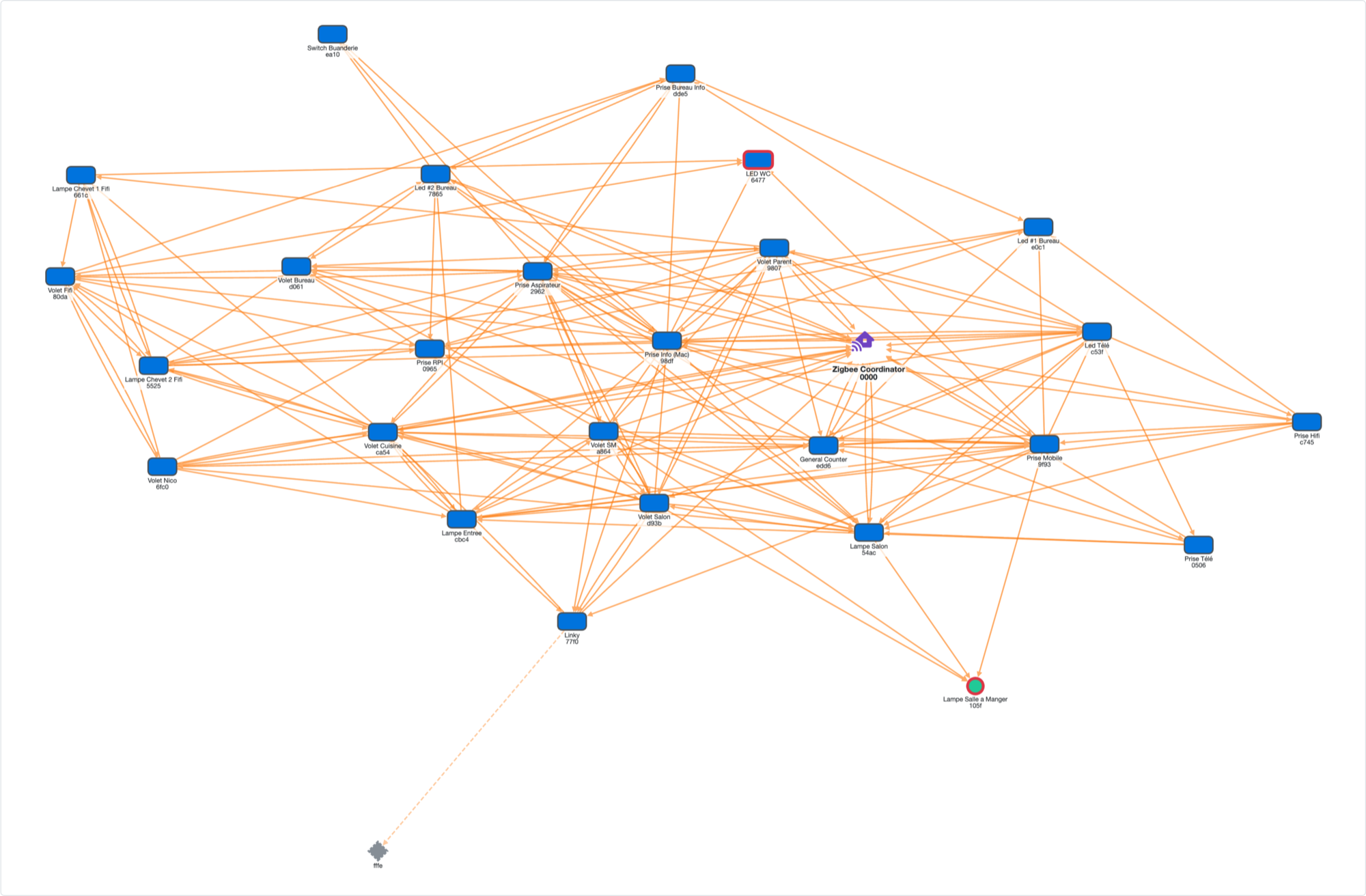
In Routing tables mode the graph draws one arrow per (reporter, next hop) pair, not one per
routing row: a router typically reaches a dozen destinations through the same neighbour, and a dozen
parallel arrows say nothing one does not. Click an arrow and the panel lists the destinations it
carries.
Because routing rows carry no LQI and no relationship, the LQI window and the relationship
filters are greyed out in this mode - they have nothing to act on.
What to look for in the routing view:
- Follow the arrows from a device to the coordinator to see the hops a frame actually goes
through.
next hop == destination is a direct, one-hop route and is common and healthy.
- Route status (§2.4.4.3.3):
active, discovery_underway, discovery_failed, inactive,
validation_underway. A discovery_failed row is a genuine finding. Note that zigpy filters
inactive rows out before the plugin ever sees them, so a route you remember may simply not be in
the report.
many-to-one marks a route created by a many-to-one route request - the concentrator
mechanism a coordinator uses so that every node has a route to it without each one discovering
one (Silicon Labs - Zigbee Routing Concepts). route record required is its
companion: the node must send a route record so the concentrator learns the return path.memory constrained is a router that cannot store many routes - typically a small-memory
device that will force route discovery more often.
A link in the neighbour view with no route over it is perfectly normal: no traffic has needed that
path. A route over a pair that is not in the neighbour view is more interesting - usually it means
one of the two did not answer the scan.
Depth: how to read it, and what it is worth
Every neighbour row carries a depth field. In the Zigbee specification (§2.4.4.3.2) it is the
neighbour’s tree depth - its distance from the coordinator in the association tree, 0 for the
coordinator, capped at 15 (nwkMaxDepth). Read that way, every node that describes device X should
give X the same depth.
In practice it does not work like that, and the field is the one part of a report that is
routinely misread. What follows is measured on the network in the screenshots above - a ZNP
coordinator and 62 devices, of which 30 could be asked for a neighbour table and 28 were reached -
over the eight scans of a single day, of between 380 and 460 neighbour rows each.
Depth is a property of the reporting radio, not of the neighbour
Each radio behaves in one of three ways, and it behaves the same way in every scan - this is a
fixed trait of the device’s stack, not a reading that moves with the mesh:
Class
What the reporter’s depth column looks like
Share of the measured network
No depth
15 on every row, except the coordinator row, which is always 09 of the 25 nodes that answered
Constant stamp
one value on every row whatever the neighbour - almost certainly the reporter’s own depth, stamped on each entry
14 of 25, the coordinator among them
Genuine per-neighbour
more than one real value across the table
2 of 25
The proof is that reporters contradict each other. In the scan measured here, 50 nodes are given a
depth by somebody, and 23 of them are given two or three different ones. Two routers in the
screenshots above, Switch Buanderie and Led Télé, are each depth 1 to one neighbour and depth 2
to another; a node cannot be both, so the number is not a property of that node.
Over the 462 rows of one scan:
Value
Rows
15319 (69%)
legal, but used as a sentinel by most stacks here
25522 (5%)
out of range; the plugin reports it as unknown, and the graph shows no depth at all
0-14121 (26%)
plausible - but most come from a constant stamp
of which, from a reporter that varies depth per neighbour
34 (7%)
the rows actually worth reading
Where it is genuine, it is still only partly arithmetic
The two reporters that do vary their depth are right about the part of the tree they are in:
- Switch Buanderie reports its parent at depth 1 - so it is itself at 2 - and the two devices it
declares as its own, a router and a sleepy end device, come back at exactly 3. Its nine sibling
rows, though, all read 1, which cannot be true of a sibling of a node at depth 2;
- Led Télé stamps 2 on every router it hears and 3 on the four devices its Associated Devices
table declares. That is its own depth and its children’s, which is the useful half of a tree and
says nothing about the fifteen routers it stamped.
So where the column moves at all, the parent and child rows hold up. The rest of the column does
not, and nothing in a row says which kind of row you are holding.
How to read it
- Never read a depth off a single row. Look at the whole column of the node that reported it:
that is what says whether the number means anything. The node panel lists a node’s neighbour rows
together, which is what makes this possible.
- A constant column is the reporter talking about itself. Treat it as unknown for the
neighbour.
0 is always the coordinator. Every stack gets that one right, and it carries no
information.- A column that varies is trustworthy.
- Depth is not hop count. Tree depth says which node you joined through; hop distance says
who you can hear. In a Zigbee PRO mesh, routing is mesh routing, not tree routing, so the
association tree barely participates in how a frame actually travels. A router that stamps depth
4 can be a single radio hop from the coordinator, and both statements are true.
What it is good for
- Anchoring a fragment of the real association tree. The
parent and child rows of a genuine
reporter are the only part of the tree the scan can actually prove. The Associated Devices table
gives router→device edges but cannot rank them - on the measured network thirteen routers
declared twenty-five devices between them, which is thirteen separate stars with nothing placing
the routers themselves.
- Catching a reparenting. A child’s depth should be its parent’s plus one. When a genuine
reporter’s arithmetic stops working, something has moved.
- Recognising a stack. The depth signature is stable per device, so it effectively identifies
which firmware family a router runs.
What to use instead
For the question people actually ask of this field - how far is this device from the coordinator? -
use hop distance over the links the scan reports, not depth. On the measured network that gives
one unambiguous answer per node: the coordinator, 25 nodes one hop away and 25 two hops away. The
eleven it cannot place are the honest part of the answer - nine battery devices no router reported
hearing, a router that timed out, and one node the scan never reached - where depth offers 50 nodes
with contradictory claims and no way to tell which claim to keep.
The graph already draws that: the concentric layout rings nodes by how connected they are, and
breadthfirst roots the graph at the coordinator and lays out levels away from it. Both are
computed from the links in front of you, and neither reads the depth column.
In short: do not lay a tree out with depth, and do not colour nodes by it. Read it in the
node panel, in the context of the whole column it came from, and treat a disagreement between two
reporters as the finding it is rather than as noise.
Computed routes
The three tables say what each node knows. The question most people actually
bring to a mesh diagram is the one that spans them: how does this device reach the
coordinator, and what does it go through on the way? The Routes for control answers it.
Nothing is worked out until you pick a device, and the direction then follows from what you
picked, because the question is not symmetrical:
- the coordinator shows one route per device: how the controller reaches each of them. The
table under the graph lists every device with its hop count, its first hop, and where the answer
came from. On the scan in the screenshots that is 51 rows out of 61 devices; the ten missing
ones are devices this scan connects to nothing at all, and a device with no route is left out of
the table rather than listed with an empty one.
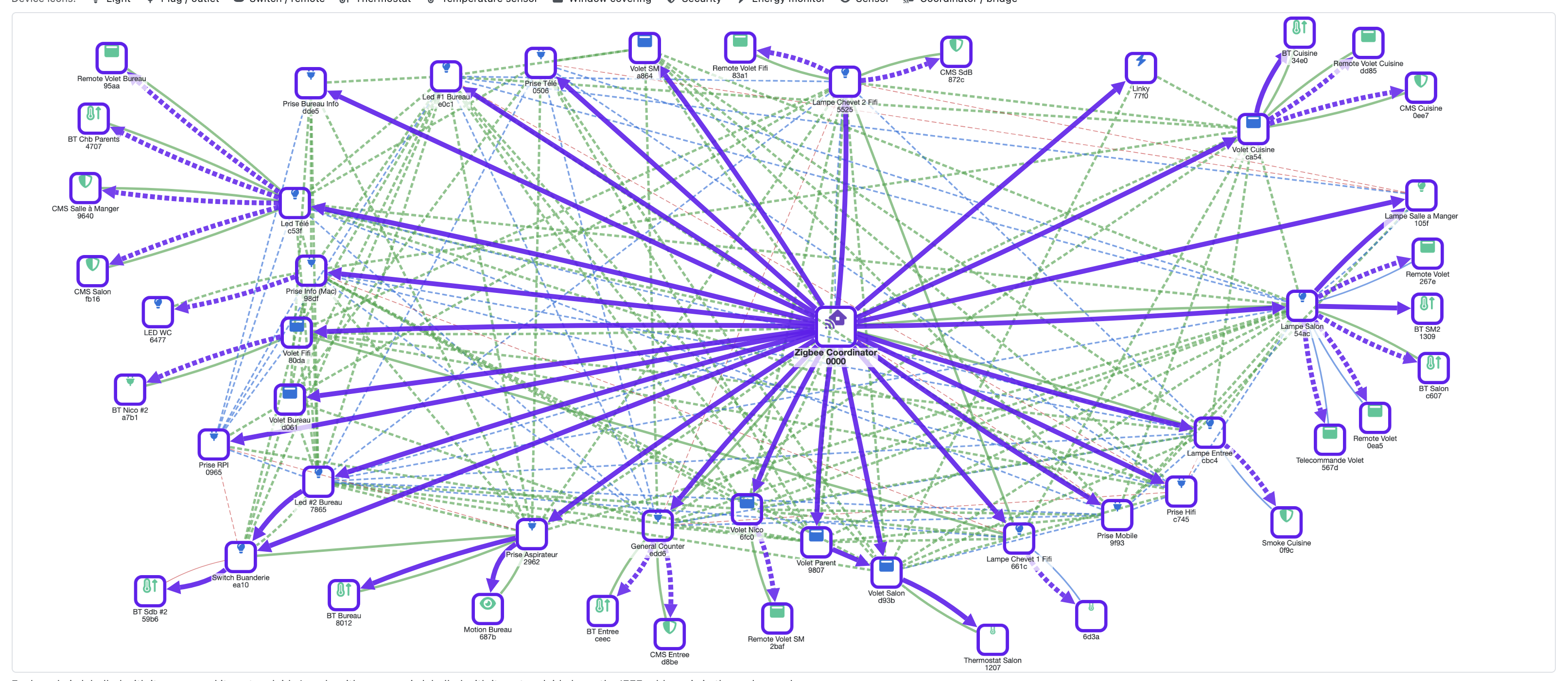
Every route the coordinator has to the devices around it, drawn at once over the mesh underneath:
solid purple where the radios stated the hop, dashed purple where this page worked it out. It is a
star over the whole mesh, which is why the page does not open on it - and clearing the field takes
it off again.
- any other device shows that device’s route out to the coordinator, hop by hop.
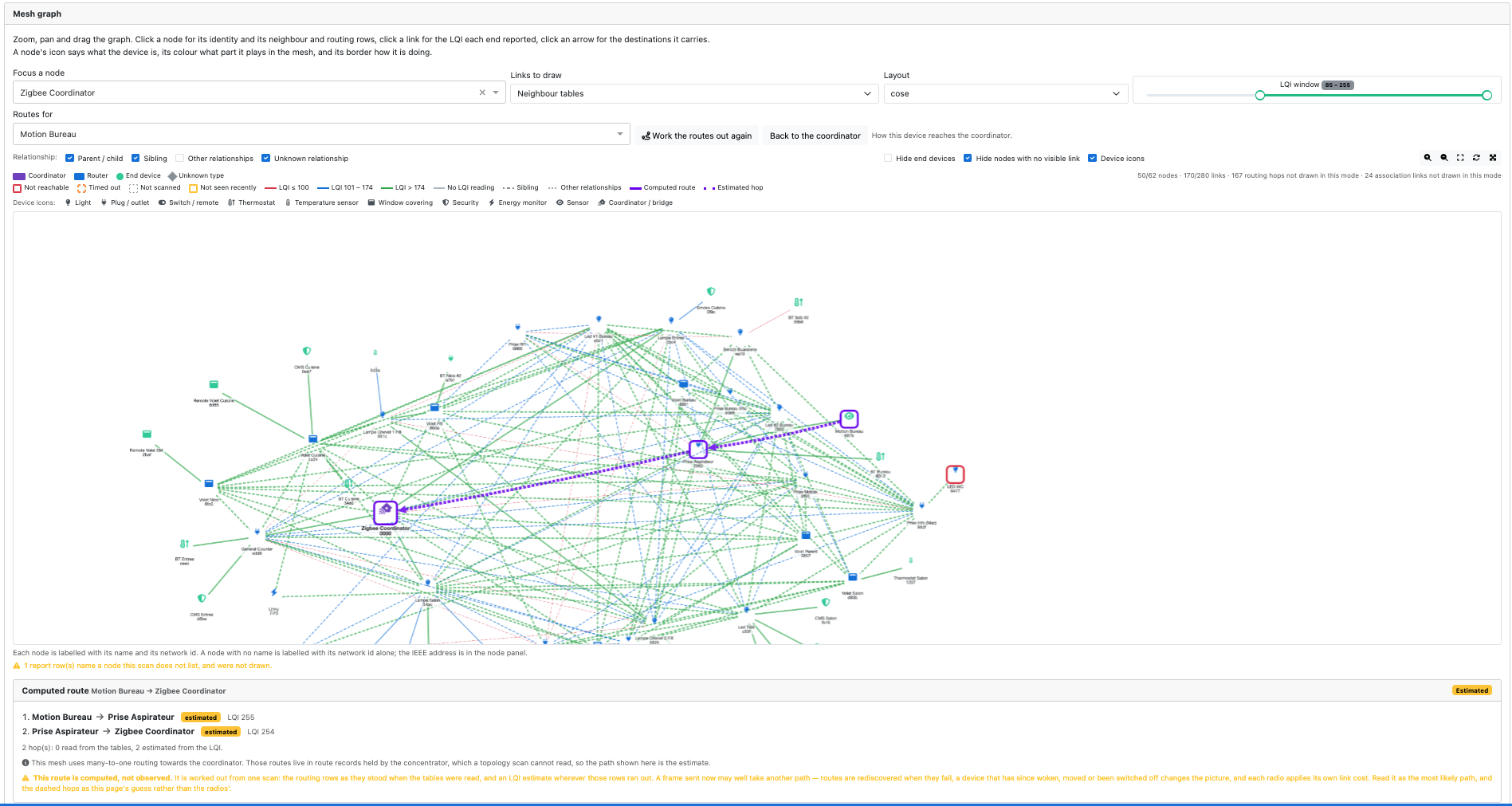
A battery motion sensor two hops from the controller, by way of the plug that declares it as one
of its associated devices. Both hops are dashed - no router on the way had a settled routing row
for the coordinator, so the whole route is the LQI estimate, and the note under it says why: this
mesh uses many-to-one routing towards the coordinator, and those route records are held by the
concentrator, where a topology scan cannot read them.
Clicking a device in the table, or the button in its node panel, switches to that device’s route.
How a route is worked out
Nothing extra is asked of the mesh: the route is assembled from the scan already on screen.
- Follow the routing tables. The route starts at the source and reads its routing row for the
destination. That row gives the next hop, so the next node’s table is read in turn, and so
on. This is a reconstruction of what the radios actually decided.
- A row is only followed when it is
active. discovery_underway, validation_underway and
inactive are not decisions the radio has committed to, and treating one as a fact would
present a route that may never exist as an observation.
- A destination in the current node’s neighbour table is delivered directly, in one hop - no
routing row is needed.
- A sleepy end device is always reached through its parent, the router that declared it in the
Associated Devices table. It is the last hop, and it is the only way a battery device can be
placed at all.
- Where the chain breaks, the rest is estimated. Zigbee’s route discovery picks the path of
lowest total cost, and a link’s cost comes from its delivery probability:
cost = min(7, 1/p⁴),
with p estimated from the LQI. The graph takes the worse of a link’s two directions, as a
stack’s own link status exchange does, and runs Dijkstra. That is the rule route discovery is
supposed to follow - which, as the measurements below show, is not the same as what the radios
in a given house were seen to do.
Every hop is labelled with which of the two produced it, and that distinction is the point:
On the graph
In the panel
Meaning
solid purple
routing table, direct neighbour, through its parentthe radios stated this hop
dashed purple
estimatedthis page worked the hop out
What this is worth, and what it is not
A computed route is not an observed one. This is worth being blunt about, and the page prints
it under every route it draws:
- It is a reconstruction from one snapshot. The routing rows are as they stood at the moment
the tables were read, which on a zigpy scan is minutes of collection, not an instant.
- Routes are sticky, then they are not. A route stays in use until it fails, and then the mesh
rediscovers one - possibly a different one. A frame sent now may take a path that is in no table
this scan read.
- Anything that has changed since invalidates it. A device that has woken, reparented, been
moved or been switched off changes the answer, and the scan knows nothing about it.
- The LQI-to-cost curve is not standardised. Every vendor maps LQI to a delivery probability
its own way - Silicon Labs, TI and NXP all differ, and NXP’s own published table (reproduced
under Interference level) treats an LQI of 51 as a cost of
1 where the curve used here would call it the worst possible. So the estimated hops are a
plausible path, not the radio’s arithmetic.
- Estimated hops are a prediction, and where it can be checked it is often wrong. Dashed means
this page’s guess, not the radios’. On the network measured here there are 31 router pairs
whose path was assembled by genuinely following a chain of routing rows, so the estimate can be
run beside a real decision: it picks the same path in 5 of them. In 16 of the 31 it prefers a
path it considers cheaper than the one the radios are actually using - usually a detour around a
weak direct link the radios keep using anyway. The curve is part of the reason: of the 280 links
in that scan, 210 sit at the maximum cost of 7 and 39 at 1, so
1/p⁴ has very little to say
between fine and hopeless. Read a dashed hop as about here, not as the path.
- The route to the coordinator is usually the estimate. Most meshes use many-to-one
routing towards the coordinator: instead of every node discovering its own route, the
coordinator floods one request and the nodes answer with route records. Those records live in the
concentrator, and a topology scan cannot read them - so for the destination people ask about most,
there is frequently no per-destination row to follow. The page says so when it applies.
Read a computed route as the most likely path, useful for “what is this slow device going
through, and does that look sensible?” - and not as a packet capture.
What it comes to on a real scan
The numbers from the scan in the screenshots, which is an ordinary house rather than a difficult
network, say what to expect:
Of the 61 devices beside the coordinator
the coordinator reaches, every hop read from a table
31
the coordinator reaches, wholly estimated
19 - 38 estimated hops in all
nothing in the scan connects
11 - battery devices no router reported, and two dead nodes
whose route out to the coordinator is read from the tables
25
whose route out is wholly estimated
25
Routers carrying a many-to-one row for the coordinator
17, and 23 rows ask for a route record
The direction matters, and the asymmetry in that table is the many-to-one mechanism showing
through: the coordinator mostly knows how to reach a device, while the device’s own way back lives
in a route record the scan cannot read. A route out to the coordinator is therefore the one
most likely to be drawn entirely dashed, which is why the page prints that note under it.
Where it is most useful
- A device that is slow or drops commands: see whether it is going through three hops, or through a
router with a poor link.
- Checking what a new repeater actually changed: run a scan before and after and compare the routes.
- Spotting a chokepoint: in the coordinator’s view, the first hop column shows how many devices
depend on one router.
- A route that is wholly estimated tells you something in itself - no router on the way had a
settled row for that destination when the scan ran.
Associated devices: a router and what is attached to it
On the name. This view is called Associated devices in the WebUI, after the table it
draws: for each router, the devices attached to it.
The words parent and child are the Zigbee specification’s own and are still used on this page,
but for something else - the parent/child value a neighbour row reports, under
The relationships. That is a different table, gathered by a different
request, and this view used to carry the same name, which is why it no longer does. For an end
device the two coincide in practice: the router it is associated with is its parent, and holds
its frames for it.
What the source of the information is
It does not come from a Mgmt_* table. It comes from the extended address request:
NWK_addr_req (or IEEE_addr_req) with RequestType 0x01, which a coordinator or a router answers
with NumAssocDev, StartIndex and NWKAddrAssocDevList - the list of devices associated to it.
Three things follow from that:
- Only a coordinator or a router is asked. An end device parents nobody.
- zigpy never asks for it. Its topology scanner collects neighbours and routes only, so the
plugin collects this third table itself, with its own request and its own paging, and files it
with the scan it belongs to (see How a scan is performed).
- A row is a declaration and nothing else. No LQI, no relationship, no depth - unlike a
neighbour row. The edges of this view are therefore all one colour.
What it is worth
It is the only table that places a sleepy end device in the network.
A battery sensor answers no scan: it is asleep, it has no neighbour table, and asking it costs a
timeout. In the neighbour and routing views it is either absent or an isolated dot. But the router
it is attached to knows about it and answers for it - so in this view a Lumi/Aqara sensor, a door
contact, a remote or a valve appears under the router it is actually attached to.
That is the question most people are really asking of a mesh diagram: which repeater is this sensor
going through, and is that the one I expected?
It is also the fastest-changing part of a mesh. A battery device reparents - attaches itself to
another router - whenever the one it is on goes away or a better one appears, and that happens far
more often than the mains backbone changes shape. The page therefore offers this table as a
collection of its own - see Refreshing the associated devices alone.
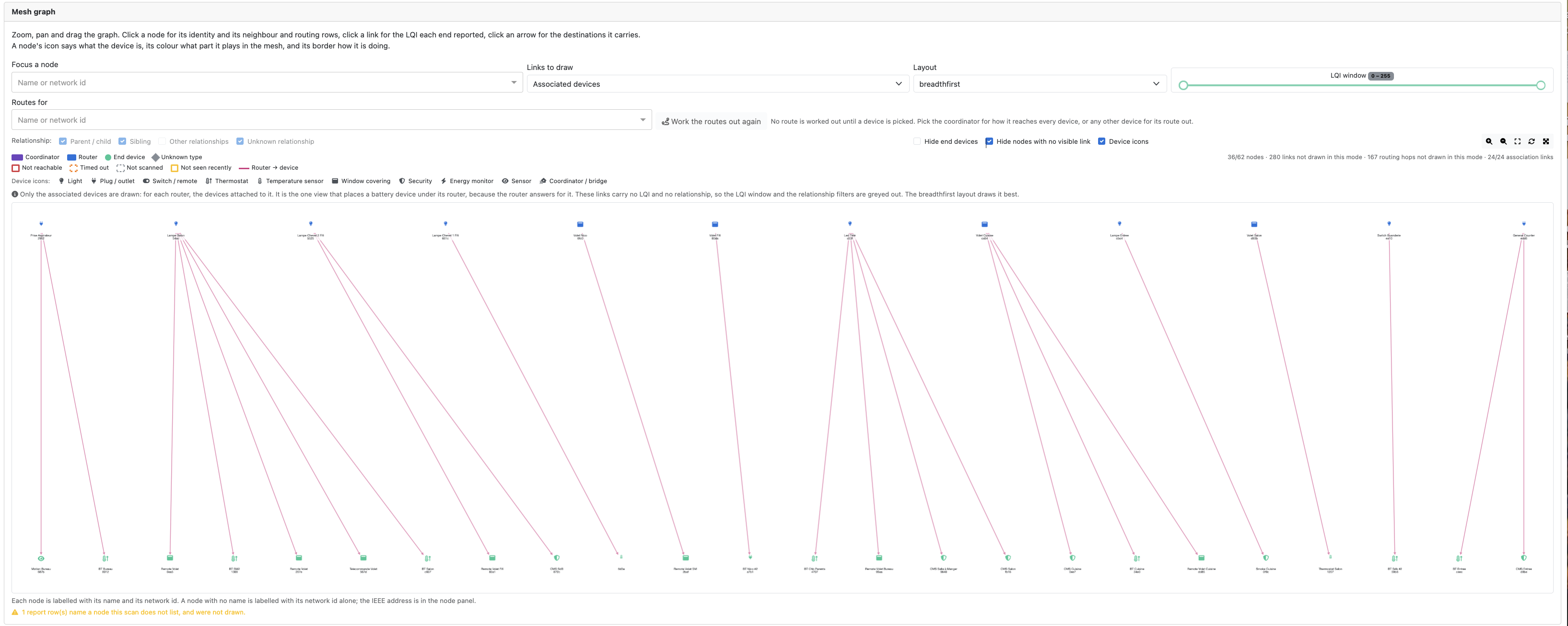
The associated devices view of the same scan, whole, in the breadthfirst layout: twelve routers
along the top and the twenty-four devices they declare along the bottom, each link drawn as one
router → device line. The counters read 24/24 association links, and the line under the graph
counts the one row that names a node this scan does not list. Nothing in this table places the
routers themselves, which is why it reads as a row of routers with their devices under them rather
than as one hierarchy under the coordinator. Zoom in, or click a node, to read the names.
It is not a record of how you paired the device
This is the question this table attracts most, so it is worth answering plainly: no, the
associated device list is not a record of where or how you paired a device. It is where that
device is attached now.
What actually happens when a device joins:
- The device sends a beacon request. Every router in range whose network is open answers.
- The joining device picks one of them, by its own stack’s criteria - signal, depth, spare
child capacity. The choice is the device’s, not yours and not the coordinator’s.
- It associates with that router, which from then on holds the frames addressed to it. That is the
entry you see in this table.
Three consequences:
- Opening the network opens it everywhere. Z4D’s Accept new hardware sends the permit-join
request to the broadcast address
0xFFFC - every router, plus the coordinator - so in normal use
you are not pairing “on” a particular router at all. Standing next to one biases the device’s
choice, because that router’s beacon is the strongest; it does not dictate it.
- Even a deliberate choice does not stick. A device reparents on its own whenever its
router disappears or a better one turns up. A sensor paired next to a given repeater can be
somewhere else entirely a week later - and seeing that is precisely what this table is for.
- For a router, the entry barely matters. A router that joined through another router is listed
as attached to it, but Zigbee PRO routes by cost and next hop, not down the association tree. So
for a router the row records who it joined through, not how its traffic flows. For an end
device it is the real thing: its frames genuinely go through that router.
So read an entry as “this is where the device is attached as of this scan”, and a change between
two scans as the device having moved - never as a pairing you did or did not do correctly.
Contested devices
When two parents both declare the same child, the graph draws both edges in red and flags the
device.
That is not a malformed report. It is a device that has reparented, leaving a stale entry behind in
its previous parent’s table. Seeing it is half the reason to collect this table at all: it tells you
a device has moved, and which way.
Caveats
- An empty list is ambiguous on a full scan. The table is flat -
{node: [children]} - so a
router that was asked for its associated devices and timed out reads exactly like a router with none.
On a standalone tree collection there is no such ambiguity: the per-node scan status then
reports that collection’s own outcome.
- The rows lag the rest of the scan. A scan is timestamped when zigpy’s neighbour and route
tables were read; the associated devices are collected over the minutes that follow. A device that joined in
between can appear as a child of a router whose neighbour rows predate it.
- A router with nothing attached to it is normal. Plenty of routers carry no device at all.
Layouts: what is best for what
The Layout control chooses how the nodes are positioned. It changes nothing about the data - the
same nodes and the same links, arranged differently. Changing it recomputes the positions; the
Recompute layout button re-runs the current one, which is useful after dragging nodes around.
Layout
What it does
Best for
cose (default)
Force-directed: links behave like springs, nodes repel each other, and the graph settles into its natural shape
The general-purpose view, and the one to start from. Clusters emerge on their own, so a group of devices that only hangs together through one router becomes visible as a lobe with a thin neck - which is exactly the fragile part of a mesh
concentric
Rings around the coordinator, placed by how many links each node has
Finding the hubs. The most connected nodes land in the inner rings, the leaves on the outside. Good for answering “which repeaters is this network actually leaning on?” - but on a backbone where the routers all have a similar number of links, those inner rings hold one or two nodes each and the middle of the picture reads as a column rather than as rings
breadthfirst
A hierarchy, rooted at the coordinator, level by level
The associated devices view - it is what that view is meant to be read in - and for seeing hop distance from the coordinator at a glance. It is the least useful on a densely meshed backbone, where it has to draw a hierarchy that does not really exist
circle
Every node on one circle, in order
Small networks, and auditing a single node. Nothing is hidden behind anything else, and every link is a visible chord. It becomes unreadable past a few dozen nodes
grid
Regular rows and columns
Inventory rather than topology. Every node occupies the same amount of space, so it is the easiest layout in which to confirm that a particular device is present, or to spot the isolated ones
The neighbour tables of the same scan in cose, which lets the shape settle on its own, with
Hide nodes with no visible link switched on so the layout has the canvas to itself:
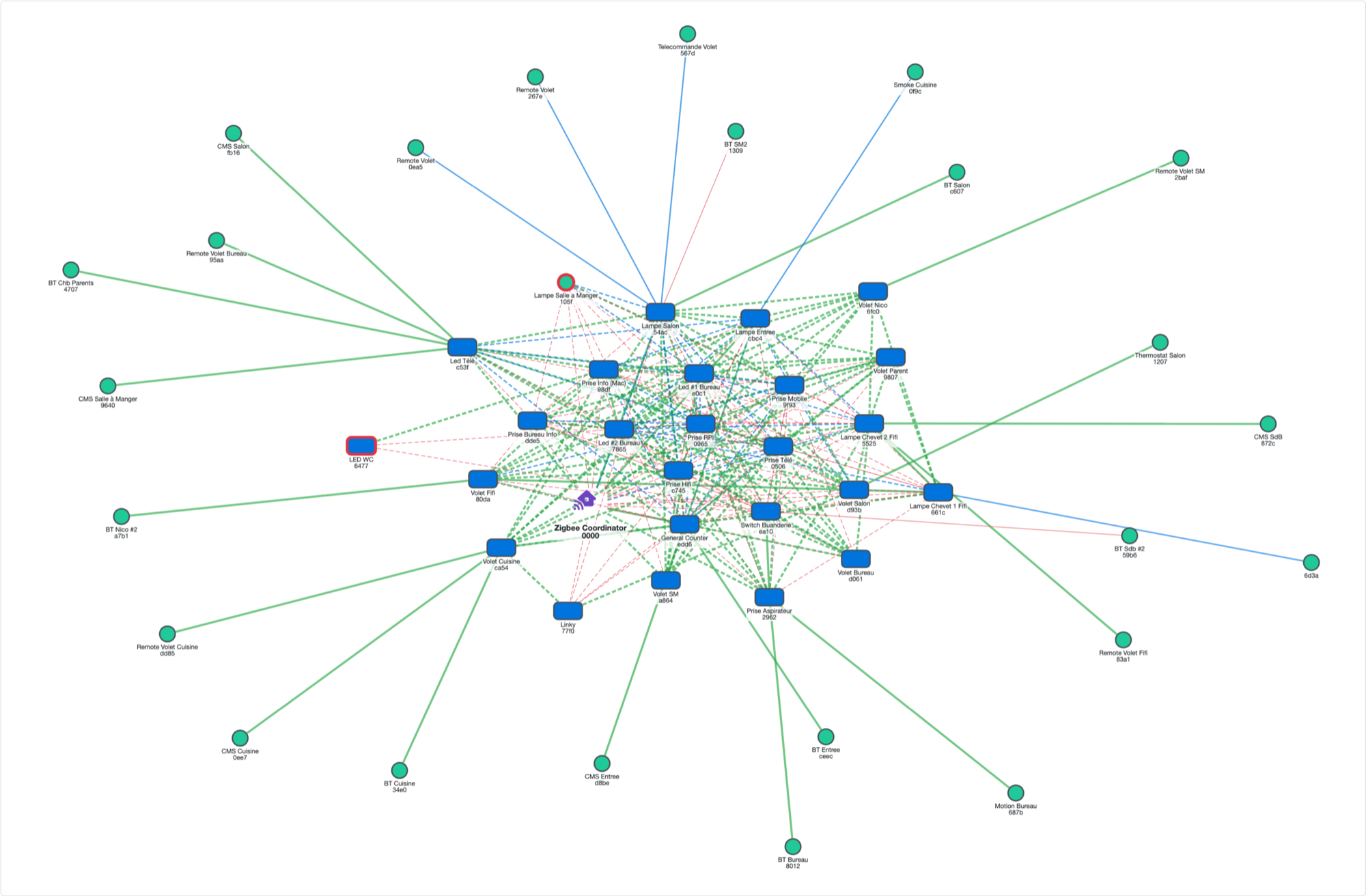
The routers in the middle are the backbone, every leaf around them hangs off one of those, and the
thickness of the knot in the centre is itself the finding: on this network most routers hear most
other routers.
Practical sequence that works well:
- Start in cose with Neighbour tables to see the shape of the backbone.
- Switch to concentric to identify the hubs the mesh depends on.
- Switch to Associated devices with breadthfirst to see where the battery devices sit.
- Switch to Routing tables (any layout, cose is fine) when you have a slow device and want
to see what it is going through.
The graph can be zoomed, panned, dragged and put fullscreen, and Focus a node (by name or
network id) centres the graph on one device and fades the rest - the fastest way to answer a
question about one specific device on a large mesh.
Filters and what they act on
Every control on the page, what it acts on, and where it starts:
Control
Acts on
When the page opens
Notes
Focus a node
the view
nothing focused
centres the graph on one device and fades the rest
Links to draw
which table is drawn
Neighbour tables
Neighbour tables / Routing tables / Both / Associated devices. Greyed out for a table the scan does not carry, and a scan that carries only the tree opens on the tree
Layout
positions only
cose
see Layouts
Routes for
the computed route
empty, so no route is worked out
pick the coordinator for how it reaches every device, or any device for its route out; clearing the field takes the route off the graph again - see Computed routes
Relationship: Parent / child
neighbour links only
on
see The relationships
Relationship: Sibling
neighbour links only
on
Relationship: Other relationships
neighbour links only
off
none_of_above and previous_child; they can double the number of edges on a large mesh
Relationship: Unknown relationship
neighbour links only
on
LQI window
neighbour links only
0 - 255, so nothing is excluded
both bounds inclusive. A link neither end measured has no LQI, so it is outside every window - it is not hidden by narrowing the range, it is simply not a value
Hide end devices
nodes
off
removes the leaves to leave the backbone
Hide nodes with no visible link
nodes
off
hides whatever the current filters have left isolated. Useful after narrowing the LQI window
Device icons
drawing only
on
turns the per-device icons on or off; nothing is added or removed
The relationship filters and the LQI window are greyed out in the routing and associated-devices
views,
because neither a routing row nor an association row carries a relationship or an LQI for them to
act on.
Nothing is remembered between visits: the controls are back at the settings above every time the
page is opened. Changing the selected scan does not reset them, so two scans can be compared
under the same filters.
The counters under the graph always read visible / total, so a filter never hides the fact that it
is hiding something.
Reading the picture
Node colour is the role the node plays in the mesh: coordinator (purple), router (blue), end
device (teal), unknown (grey).
Node icon is what the device is - a light, a plug, a switch, a sensor, a valve - resolved from
the device’s own descriptors. A device that reported none is drawn as a plain shape.
Node border is how the node is doing, worst first:
Border
Meaning
thick red
Not reachable - the plugin’s own health for this device
thick dashed orange
Timed out - it was asked for its tables and never answered. This is a finding, not a leaf with no neighbours
dashed grey
Not scanned - it has a neighbour table in principle, but this scan never reached it
amber
Not seen recently - no traffic from this device in the last 24 hours
plain
fine
Being able to tell timed out from has no neighbours is the single most useful thing this page
does that the older charts could not: before, both were drawn as a dot with no links.
Click anything. A node opens a panel with its identity (network id, IEEE address, model, type,
health, battery, LQI/RSSI), its scan status, what it is attached to and what is attached to it, and every neighbour and
routing row that mentions it. A link opens the two LQI readings. An arrow opens the destinations it
carries.
The health, model, LQI, RSSI and battery shown for a node are that device’s values now, not
its values at the time of the scan. Only the tables are historical.
The coverage banner above the graph is not decoration. When it says “4 of 32 nodes answered
this scan”, the picture below is a picture of those 4 nodes. See the next section.
A line under the graph counts the rows that could not be drawn, when there are any: “1 report
row(s) name a node this scan does not list, and were not drawn”. A table can name a network
address the scan has no node for - a device that has since left, an address reused, or in the scan
used throughout this page a device the coordinator still declares as attached to it. Those rows are
counted rather than invented into a node, and the count is worth a glance: several of them at once
usually means the report and the device list have drifted apart.
How a scan is performed
Starting one
The Topology scan card at the top right of the Mesh page has two buttons:
- Scan - a full topology scan. The same
/req-topologie the Topology page has always used.
- Associated devices - that collection on its own (zigpy coordinators only).
Both answer immediately: the scan itself runs in the background and takes minutes. A scan appears
in the list only once it has finished - there is no half-written report. While one runs, the WebUI
footer reports a topology scan in progress, for both halves of it.
A scan can also start by itself, periodically, if ZigpyAutoTopology is enabled (it is off by
default - see Settings).
The zigpy half: neighbours and routes
On a zigpy coordinator (ZNP, EZSP/Bellows, deCONZ, BLZ) the first half is run by zigpy itself:
- It walks the device table and asks only coordinators and routers. An end device is skipped
- it has no neighbour table.
- A device with no node descriptor is skipped silently. The node descriptor is what tells zigpy
a device is a router at all, and a device whose descriptor the plugin never captured would be
invisible to every scan. The plugin now hands zigpy the descriptor it holds at startup, and logs
two lines saying how many devices are described and naming the ones that are not. If a device is
missing from every report, that startup line is the first place to look.
- Each table is paged.
Mgmt_Lqi_req is sent with a start index, the answer says how many
entries exist in total, and the request is repeated until the table is exhausted. Same for
Mgmt_Rtg_req.
- Every request is followed by a 1.0-1.5 s pause, deliberately, so that scanning a large mesh
does not flood it.
- Each request is retried twice, 1 s apart, with a 5 s reply timeout per attempt.
inactive routes are dropped before the plugin sees them.- At the end, zigpy tries to resolve any network address it saw in a table but does not know.
So the cost of a scan is roughly (number of routers) x (pages x (request + ~1.25 s)), twice -
once for neighbours, once for routes. On a few dozen mains-powered devices that is minutes, not
seconds.
The plugin half: associated devices
When ZigpyTopologyAssociatedDevices is enabled, the plugin then collects the associated device table
itself, because zigpy does not:
- it runs after zigpy’s half, never alongside it - two scanners interrogating the same routers
at once would undo zigpy’s pacing and make a timeout impossible to attribute;
- it is a state machine ticked from the plugin heartbeat, one request in flight at a time, with
no thread and no event loop of its own;
- each node gets about 10 s to answer before the collection moves on, and the whole collection
has a ceiling so that one node whose pages never stop cannot hold the report open forever;
- commissioning comes first: while a device is pairing, the collection pauses.
Both halves are filed as one scan under one timestamp, which is the moment zigpy’s tables were
read.
If the radio restarts mid-collection, the scan is filed with what it has - zigpy’s two tables and no
associated devices section. An absent section is how the report says “this table was not collected”, which is
a different statement from “collected and found nothing”.
Refreshing the associated devices alone
Associated devices runs that second half on its own, without a full scan. One request per router
instead of two paginated tables - much cheaper - and it refreshes exactly the part of the mesh that
changes most often.
It is filed as a scan of its own, carrying the associated device table alone. Its neighbour and route counts
are zero because they were never asked for, and the page labels it as such rather than drawing an
empty mesh. It is refused while any other scan is in progress, and it needs a zigpy coordinator.
Storage
Reports are kept in the plugin’s reports folder (Zigpy-Topology-XX.json), newest last, and the
oldest is dropped once there are more than numTopologyReports of them (4 by default). Keeping
several is what makes two scans comparable - which is also why each scan must be a fresh reading and
not an accumulation.
Devices that are switched off, and other gaps
This is the part of a topology report that is most often misread, so it is worth going through
carefully.
A router that is powered off
A mains-powered device that is unplugged, or a bulb whose wall switch is off, is still in the
plugin’s device list and is still asked. The scanner has no way to know it is gone until it fails
to answer. What follows:
- It costs the scan about 35-40 seconds, every time. Three attempts at 5 s for the neighbour
table, three more for the routing table, plus the retry delays. Ten dead routers add something
like six minutes to every scan.
- It is never written off. zigpy stops asking a node that refuses a request - one that answers
with a “not supported” status - but a node that stays silent is asked again on every single
scan, forever. A device you removed by pulling the plug is a permanent tax on every future scan;
remove it from the plugin properly instead.
- It shows as
timeout - thick dashed orange border - and the coverage banner counts it. That is
the honest answer: asked, said nothing.
- The devices on it reparent. The battery devices that were attached to it move to another router,
usually within minutes to hours. The old parent’s declaration may survive in a stale table, which
is what the red contested child edges show.
- Routes through it break. Routes are rediscovered on demand, so a routing view taken right after
a router disappears can be a mixture of paths that work and paths that no longer do.
Stale links: the caveat that matters most
zigpy’s tables are cumulative per device. Each scan replaces the rows of each device it
successfully scanned, and leaves the rows of a device that failed exactly as they were. So:
- a router that answered the first scan and has been powered off since may keep appearing with
its last known links, scan after scan, for as long as the plugin process lives;
- a node that has never answered since the plugin started shows as
timeout, with no links, which is
the correct reading.
If you have just switched a lot of things off or on, restart the plugin before trusting a
topology report as a snapshot of “now”. A plugin restart clears zigpy’s accumulated tables; a
new scan then reports only what answered this time.
The practical rule: a report is reliable about the links it shows for nodes that answered this
scan, and should be read with suspicion for every node the coverage banner counts as timed out.
The classic trap: a smart bulb on a wall switch
A Zigbee bulb is a router. Turn it off at the wall, and you have not “turned off a light” - you have
removed a relay from the backbone. On a mesh where a room hangs off one bulb, that is a hole, and
everything behind it goes quiet or slows down while routes are rediscovered.
In the graph it reads as: one node timed out, a lobe of the network suddenly attached by a single
thin link or not attached at all, and a handful of contested devices in the next collection.
This is the single most common cause of “my Zigbee network is unreliable in the evening”.
Battery devices are expected to be missing from the link views
A sleepy end device is reported as “No neighbour table” (not_supported), not as a failure. It
is not counted against the scan’s coverage. It appears:
- in the node list, always;
- in the neighbour view, only if a router reported hearing it;
- in the associated devices view, under the router that declared it - which is the view to
use for battery devices.
A device the scan never reached
Not scanned means the node has a neighbour table in principle, but this scan did not get to it -
a scan cut short by a radio restart, or a device the scanner skipped. It is a gap in the picture, not
a statement about the device.
Reading the coverage banner
answered / requested, where requested counts only the nodes that could have answered. A node
that cannot answer at all - an end device on a neighbour scan - is not counted against the scan.
When the banner says “4 of 32 nodes answered this scan”, the graph below is a picture of four
nodes’ opinions about the network. Drawing conclusions about the other 28 from it is the mistake the
banner exists to prevent.
Getting a good report
- Scan when the house is in its normal state - everything that is usually powered, powered.
- Restart the plugin first if you want a true snapshot rather than an accumulation.
- Remove devices you have really removed, rather than leaving them to time out forever.
- Read the coverage banner before the graph.
- Refresh the associated devices on its own when the question is about battery devices - it is
minutes instead of a full scan, and it is the part that moves.
Settings
All of these live in the WebUI under Settings, in the advanced section.
Setting
Default
What it does
ZigpyTopologyReporton
Use the zigpy topology report. With it off, /req-topologie falls back to the legacy NetworkMap scan
ZigpyAutoTopologyoff
Let zigpy run its own periodic scan (every 12 hours). Only effective when a zigpy persistent database is enabled
ZigpyTopologyReportAutoBackupoff
Keep the report of a scan nobody asked for. With it off, only a scan you requested is filed
ZigpyTopologyAssociatedDevicesoff
Collect the associated device table as the second half of a full scan. Not required for the standalone Associated devices button - asking for the table there is the request
numTopologyReports4
How many reports are kept before the oldest is dropped
TopologyV2on
The non-zigpy (native ZiGate) collection path
On a native ZiGate, ZigpyTopologyReport and ZigpyTopologyAssociatedDevices are forced off: the
TopologyV2 scan collects all three tables itself, on every scan.
References
Zigbee:
- Zigbee specification (Connectivity Standards Alliance) - §2.4.3/2.4.4 for the ZDP
requests used here:
Mgmt_Lqi_rsp §2.4.4.3.2, Mgmt_Rtg_rsp §2.4.4.3.3, and the extended address
request NWK_addr_req/IEEE_addr_req with RequestType 0x01
- Silicon Labs - Network Node Types - coordinator, router and end device
- Silicon Labs - End Devices and Polling - why a sleepy device answers nothing,
and how its parent holds frames for it
- Silicon Labs - Zigbee Routing Concepts and
Table Routing - next hop, many-to-one routing and route records
- NXP JN-UG-3113 - LQI and the packet-filtering cost table reproduced in
Network section
- NXP JN-UG-3101 - ZigBee PRO stack user guide
- Understanding Zigbee and wireless mesh networking - a plain-language introduction
Plugin:
- Network section - the Topology wheel, the Topology graph and the Interference
level page, and the LQI terminology
- Build a ZigBee mesh network - how to get a mesh worth drawing
- Coexistence between Wifi and ZigBee - when poor LQI is interference
rather than distance
- Plugin settings
docs/TopologyScanAPI.md in the plugin repository - the /topology-scan REST contract this page
is drawn from, for anyone building their own tooling
Look at the other pages of the plugin Web interface.
The Web interface - Network section - Mesh graph
This page describes the Mesh graph page of the plugin Web interface, available from plugin version 9.1.008. It sits beside the two older charts documented in Network section, which are unchanged: the Topology wheel and the Topology graph still read the
/topologiereport, while the Mesh graph reads a second, richer report,/topology-scan.
The page is reached from the WebUI menu: Network > Mesh graph (/network/mesh).
The screenshots on this page are rendered from one real scan of a 62-device ZNP network - 25 of the 30 nodes that could answer did - so what they show is a real mesh rather than a mock-up. Each node carries the name you gave the device and its network id underneath; a device you never named is labelled with its network id alone. These pictures may have changed since this documentation was written.
Contents:
- The screen at a glance
- What “mesh” means
- Three tables, three different questions
- The relationships
- Routing versus Neighbours
- Depth: how to read it, and what it is worth
- Computed routes
- Associated devices: a router and what is attached to it
- Layouts: what is best for what
- Filters and what they act on
- Reading the picture
- How a scan is performed
- Devices that are switched off, and other gaps
- Settings
- References
The screen at a glance
The page is three blocks, top to bottom:
- the Topology scans list, beside the Topology scan card that starts a new one - pick a scan in the list to draw it (see How a scan is performed);
- the coverage banner, which says how many of the nodes that could answer this scan did - read it before the graph (see Reading the coverage banner);
- the Mesh graph card, shown below with a node selected.
The Mesh graph card with the router Led #2 Bureau clicked. The LQI window has been narrowed to 50 - 215 and Hide nodes with no visible link switched on, so this is not how the page opens.
The card reads from top to bottom. Each area is described in detail further down this page; this section says what is where.
1. The controls
| Area | What it does | More |
|---|---|---|
| Focus a node | Type a name or a network id: the graph centres on that device and fades the rest. The quickest way to find one device on a large mesh | Layouts |
| Links to draw | Which table is drawn: Neighbour tables, Routing tables, Both or Associated devices. A table the scan does not carry is greyed out | Three tables |
| Layout | How the nodes are placed - cose, concentric, breadthfirst, circle, grid. Positions only; the data is the same | Layouts |
| LQI window | Keeps only the neighbour links whose LQI falls inside the two handles. The badge shows the current window | A note on LQI |
| Routes for | Pick a device to see a computed route: the coordinator for how it reaches every device, any other device for its route out to the coordinator. Empty when the page opens, so nothing is drawn until you pick | Computed routes |
| Work the routes out again | Works the route for the device in Routes for out again, against the scan on screen. Greyed out while the field is empty. The text beside it says what the route on screen is | Computed routes |
| Back to the coordinator | Shown only while one device’s route is on screen: puts the coordinator back in Routes for, so the graph shows how it reaches every device | Computed routes |
| Relationship checkboxes | Parent / child, Sibling, Other relationships, Unknown relationship: which neighbour links are drawn, by what the reporting node says the neighbour is to it | The relationships |
| Hide end devices | Removes the leaves, to leave the backbone of routers | Filters |
| Hide nodes with no visible link | Removes whatever the other filters have left isolated | Filters |
| Device icons | Draws each node with the icon of what the device is, or as a plain shape | Reading the picture |
2. The toolbar
The five buttons at the right, above the graph, from left to right:
| Button | What it does |
|---|---|
| Zoom in / Zoom out | The same as the mouse wheel |
| Fit to view | Brings the whole graph back into the frame after zooming or panning |
| Recompute layout | Runs the current layout again - useful after dragging nodes around, or when a layout settled badly |
| Fill the screen | Puts the graph fullscreen. The same buttons stay available there, the last one becoming Leave fullscreen |
3. The legend and the counters
- The legend on the left says how to read a node and a link: the colour of a node is its role (coordinator, router, end device, unknown type), its border how it is doing (not reachable, timed out, not scanned, not seen recently), the colour of a link its LQI band, and its line style its relationship. The line underneath lists the device icons. See Reading the picture.
- The counters on the right always read visible / total: in the screenshot, 36/62 nodes · 110/280 links, then what the current mode does not draw - 167 routing hops not drawn in this mode · 24 association links not drawn in this mode. A filter never hides the fact that it is hiding something.
4. The graph
Zoom, pan and drag it. Each node carries its name and its network id; a node with no name carries its network id alone. Click something to open its panel underneath:
- a node - the node panel described below;
- a link - the LQI each end reported, and whether only one end reported it (Direction);
- an arrow, in the routing view - the destinations that hop carries.
The node clicked is drawn with a thick dark border, and its links stand out from the rest of the mesh. In the screenshot Led #2 Bureau is the selected node; the red square is a different thing, a device that is not reachable.
Under the graph, a line reminds how nodes are labelled, and an amber line counts the report rows that could not be drawn because they name a node the scan does not list - see Reading the picture.
5. The node panel
Clicking a node opens a panel under the graph, titled with its name and its network id. Two buttons sit in its title bar:
- Routes for this device puts this device into Routes for and draws its route out to the coordinator - see Computed routes;
- × closes the panel and clears the selection.
The panel has three parts.
The identity block. Network id and IEEE address, the type the node plays in the mesh and its model, the ZDeviceID with the icon, family and endpoint it was resolved from, the Scan status (the ⓘ beside it explains the value - Answered, Timed out, No neighbour table, Not scanned), Rx on when idle, Health, Battery, LQI and RSSI. Then the association, from the Associated devices table:
- Attached to - the router that declares this device as one of its own, or a line saying none does, or a warning when more than one does (Contested devices);
- Associated devices - the devices this router declares, or Declared no associated device.
The note under the block matters: health, model, LQI, RSSI and battery are this device’s values now, not at the time of the scan, and the LQI there is the one the coordinator recorded for the device - a link’s own LQI is on the link.
Neighbour table rows. Every neighbour row that mentions this node, in either direction:
| Column | What it holds |
|---|---|
| Reading | who measured what: “Volet Fifi hears Led #2 Bureau”. The same pair can appear twice, once per end - Led #2 Bureau hears Led #1 Bureau and Led #1 Bureau hears Led #2 Bureau |
| Neighbour | the node at the other end |
| Relationship | what the reporter says the neighbour is to it |
| LQI | the reporter’s reading, with its colour band |
| Reported type, Depth, Rx on idle, Permit joining | the rest of the row, as the reporter gave it |
Neighbour, Relationship and LQI can be sorted by clicking their header. Ten rows are shown at a time, and the selector beside the pager offers 10, 25 or 50. Read the Depth column as a whole rather than row by row: a column of 15 is a radio with no depth to give - see Depth.
Routing table rows. Every routing row in which this node plays a part, and the Role column says which part:
| Role | Meaning |
|---|---|
| Reports the route | this node’s own routing table: to reach that destination, I hand the frame to that next hop |
| Is the next hop | another node hands frames to this one - in the screenshot, the coordinator reaches Prise RPI, Prise Info (Mac) and others through Led #2 Bureau |
| Is the destination | another node holds a route to this one |
Then Reporter, Destination, Next hop, the route Status, and the Flags - many-to-one, memory constrained, route record required. See Routing versus Neighbours for what they mean, and why a routing row carries no LQI.
What “mesh” means
Zigbee is a mesh network, not a star. A frame does not have to reach the coordinator directly: it can be relayed, hop by hop, by any mains-powered device on the way. That is what the word means here - the network is a web of short radio links rather than a set of spokes, and it re-forms itself around a link that degrades.
Three roles make that possible (Zigbee specification, and Silicon Labs - Network Node Types):
| Role | Also called | Relays frames | Keeps a neighbour table | Radio |
|---|---|---|---|---|
| Coordinator | ZC | yes | yes | always on |
| Router | ZR, FFD - Full-Function Device | yes | yes | always on |
| End device | ZED, RFD - Reduced-Function Device | no | no | often asleep |
- The coordinator is your Zigbee key/dongle. There is exactly one, it formed the network and it holds the keys.
- A router is usually a mains-powered device: a bulb, a plug, a wall switch, a repeater. Routers are the mesh - they are what a frame hops through.
- An end device is usually battery-powered: a motion sensor, a door contact, a remote, a thermostatic valve. It has no neighbour table, relays nothing, and spends most of its life with its radio off. It talks to the network through exactly one router, its parent, which keeps the frames addressed to it until it wakes up and polls.
Mains-powered does not always mean router
The word “usually” above is doing real work, and it is the first thing to check when a device is not where you expect it in the graph.
A device is a router because it says it is - in the MAC capability it announces when it joins - not because of how it is powered. Several common families are mains-powered and still announce themselves as reduced-function, so they relay nothing and keep no neighbour table:
- Switches wired without neutral. They power themselves through the load, with very little current to spare, and a good number of them are built not to route. Mechanically they are a wall switch like any other; in the mesh they are a leaf.
- Models that are simply built that way, whatever their wiring - Livolo switches and the Aqara Opple remotes are the two the plugin deals with by name, and both announce reduced-function.
The plugin believes the device’s own announcement, which is the right call: it gets these models right without a list of exceptions. For the graph this means such a device is drawn as an end device, is reported as “No neighbour table” on a scan, and - like any end device - appears in the associated devices view under the router it is attached to rather than as part of the backbone.
So a room whose only “mains-powered” device is a no-neutral switch has no relay in it, however many Zigbee devices are on the wall. That is worth knowing before blaming the radio.
Two consequences run through the whole of this page:
- The backbone is made of routers only - mains-powered, and announcing themselves as routers. Every battery device, and every mains device that does not route, hangs off it.
- A sleepy end device cannot be asked anything. Whatever you learn about it, you learn from the router that answers on its behalf.
The Mesh graph draws that backbone, the links between the nodes that form it, and - when the scan collected it - which router each battery device is attached to.
Three tables, three different questions
A Zigbee node does not know “the network”. It knows a few tables about its own surroundings, and a topology report is those tables, collected node by node and stitched together. The Mesh graph can draw three of them, and they answer three genuinely different questions:
| Table | Zigbee request | Question it answers | Carries |
|---|---|---|---|
| Neighbours | Mgmt_Lqi_req (ZDP cluster 0x0031), answered by Mgmt_Lqi_rsp (0x8031, spec §2.4.4.3.2) |
Who can this node hear, and how well? | LQI, relationship, device type, depth, Rx-on-when-idle, permit-joining |
| Routing | Mgmt_Rtg_req (0x0032), answered by Mgmt_Rtg_rsp (0x8032, §2.4.4.3.3) |
To reach X, who does this node hand the frame to? | destination, next hop, route status, many-to-one / memory-constrained / route-record flags |
| Associated devices | NWK_addr_req with RequestType 0x01 - the extended address request - answered by NWK_addr_rsp with NumAssocDev / NWKAddrAssocDevList |
Which devices are this router’s children? | a plain list of network addresses, nothing else |
They overlap, but none of them is a substitute for another: two nodes can be neighbours with no route between them, a route can exist through a node that is not in the neighbour table, and the the associated device list is in neither.
The Links to draw control on the page selects which of them is drawn. They are exclusive modes rather than overlays, because a pair of nodes can appear in all three at once and the picture would say nothing.
Every control this page mentions - what it acts on, and what it is set to when the page opens - is listed together under Filters and what they act on. The plugin settings that decide what a scan collects in the first place are under Settings.
A mode is only offered when the selected scan actually carries that table. The scan listing says what each one holds, and a control for a table that is absent is greyed out rather than drawing an empty graph.
The relationships
Every row of a neighbour table carries a relationship field: what the reporting node believes the neighbour is to it. The Zigbee specification defines five values, and the plugin adds a sixth for a value it cannot decode:
| Value | Meaning |
|---|---|
parent |
the neighbour is this node’s parent - the node it joined through |
child |
the neighbour joined through this node; this node is its parent |
sibling |
both share the same parent |
none_of_above |
heard, in radio range, but with no tree relationship - two routers that simply hear each other |
previous_child |
was this node’s child and no longer is: the device has reparented |
unknown |
the radio reported a value this plugin does not recognise |
The graph groups the six into four, because three of them answer the same question for a user - is this the tree, or just radio range?
| Graph group | Holds | Drawn |
|---|---|---|
| Parent / child | parent, child |
on by default. parent and child are one relationship seen from its two ends, so they collapse into one group |
| Sibling | sibling |
on by default |
| Other relationships | none_of_above, previous_child |
off by default |
| Unknown relationship | unknown |
on by default |
These four are the Relationship checkboxes on the page, and “by default” means how they are set when the page opens - see Filters and what they act on. Nothing is remembered between visits: every control is back at its default each time the page is opened.
none_of_above is the most common value on a healthy mesh of mains-powered devices and it is not a
fault - it is two routers that hear each other without one having joined through the other. It is
off by default because on a large network it can double the number of edges without changing the
conclusion. Switch it on when you are looking for redundancy: those are the links the network
could fall back on.
previous_child is worth switching on when a battery device has moved: it is the trace left behind
in the former parent’s table.
Direction, and why both are drawn as one link
A neighbour row is a measurement made by the node that reported it. “A reports B at LQI 204” is a statement about A’s receiver, not about the pair. The two ends of the same radio link routinely disagree, and the report carries both rows separately.
The graph collapses the two rows into one drawn link, and keeps both readings:
- click a link, and the panel shows each end’s own reading - “A hears B at 204”, “B hears A at 141”.
- the link is coloured and filtered on the better of the two readings.
- a link only one node reported is flagged as such. That means either the other end did not answer the scan, or it genuinely does not hear this one - a one-way link, which is a real and common fault.
This asymmetry is one of the more useful things in the report: a device that hears the mesh well but is not heard back will drop commands while looking perfectly healthy in a signal-strength reading.
A note on LQI
LQI is a 0-255 link quality estimate, described in Network section > Terminology. It is not an RSSI and is not a dBm: a neighbour table carries LQI only. The graph bands it as:
| Band | LQI | Colour |
|---|---|---|
| Poor | 0-100 | red |
| Fair | 101-174 | blue |
| Good | 175-255 | green |
| No reading | neither end measured one | grey |
0 is a reading - it means heard at LQI 0. “No reading” is a different statement and is drawn
differently.
Routing versus Neighbours
This is the distinction that causes the most confusion, so it is worth stating plainly:
A neighbour link is radio adjacency: these two nodes can hear each other. A route is a forwarding decision: to reach that destination, this node hands the frame to that neighbour next.
One is the map of the roads, the other is the signposting.
| Neighbours | Routes | |
|---|---|---|
| What a row means | “I hear this node, at this LQI” | “For this destination, my next hop is this node” |
| Direction | a measurement by the reporter | a forwarding decision by the reporter |
| Has an LQI | yes | no - a routing row carries no quality at all |
| Has a relationship | yes | no |
| Symmetric | usually, but not always | no: the return path can be different |
| Survives a reboot | rebuilt as the radio hears traffic | discovered on demand, ages out |
In Routing tables mode the graph draws one arrow per (reporter, next hop) pair, not one per
routing row: a router typically reaches a dozen destinations through the same neighbour, and a dozen
parallel arrows say nothing one does not. Click an arrow and the panel lists the destinations it
carries.
Because routing rows carry no LQI and no relationship, the LQI window and the relationship filters are greyed out in this mode - they have nothing to act on.
What to look for in the routing view:
- Follow the arrows from a device to the coordinator to see the hops a frame actually goes
through.
next hop == destinationis a direct, one-hop route and is common and healthy. - Route status (§2.4.4.3.3):
active,discovery_underway,discovery_failed,inactive,validation_underway. Adiscovery_failedrow is a genuine finding. Note that zigpy filtersinactiverows out before the plugin ever sees them, so a route you remember may simply not be in the report. many-to-onemarks a route created by a many-to-one route request - the concentrator mechanism a coordinator uses so that every node has a route to it without each one discovering one (Silicon Labs - Zigbee Routing Concepts).route record requiredis its companion: the node must send a route record so the concentrator learns the return path.memory constrainedis a router that cannot store many routes - typically a small-memory device that will force route discovery more often.
A link in the neighbour view with no route over it is perfectly normal: no traffic has needed that path. A route over a pair that is not in the neighbour view is more interesting - usually it means one of the two did not answer the scan.
Depth: how to read it, and what it is worth
Every neighbour row carries a depth field. In the Zigbee specification (§2.4.4.3.2) it is the
neighbour’s tree depth - its distance from the coordinator in the association tree, 0 for the
coordinator, capped at 15 (nwkMaxDepth). Read that way, every node that describes device X should
give X the same depth.
In practice it does not work like that, and the field is the one part of a report that is routinely misread. What follows is measured on the network in the screenshots above - a ZNP coordinator and 62 devices, of which 30 could be asked for a neighbour table and 28 were reached - over the eight scans of a single day, of between 380 and 460 neighbour rows each.
Depth is a property of the reporting radio, not of the neighbour
Each radio behaves in one of three ways, and it behaves the same way in every scan - this is a fixed trait of the device’s stack, not a reading that moves with the mesh:
| Class | What the reporter’s depth column looks like | Share of the measured network |
|---|---|---|
| No depth | 15 on every row, except the coordinator row, which is always 0 |
9 of the 25 nodes that answered |
| Constant stamp | one value on every row whatever the neighbour - almost certainly the reporter’s own depth, stamped on each entry | 14 of 25, the coordinator among them |
| Genuine per-neighbour | more than one real value across the table | 2 of 25 |
The proof is that reporters contradict each other. In the scan measured here, 50 nodes are given a depth by somebody, and 23 of them are given two or three different ones. Two routers in the screenshots above, Switch Buanderie and Led Télé, are each depth 1 to one neighbour and depth 2 to another; a node cannot be both, so the number is not a property of that node.
Over the 462 rows of one scan:
| Value | Rows | |
|---|---|---|
15 |
319 (69%) | legal, but used as a sentinel by most stacks here |
255 |
22 (5%) | out of range; the plugin reports it as unknown, and the graph shows no depth at all |
0-14 |
121 (26%) | plausible - but most come from a constant stamp |
| of which, from a reporter that varies depth per neighbour | 34 (7%) | the rows actually worth reading |
Where it is genuine, it is still only partly arithmetic
The two reporters that do vary their depth are right about the part of the tree they are in:
- Switch Buanderie reports its parent at depth 1 - so it is itself at 2 - and the two devices it declares as its own, a router and a sleepy end device, come back at exactly 3. Its nine sibling rows, though, all read 1, which cannot be true of a sibling of a node at depth 2;
- Led Télé stamps 2 on every router it hears and 3 on the four devices its Associated Devices table declares. That is its own depth and its children’s, which is the useful half of a tree and says nothing about the fifteen routers it stamped.
So where the column moves at all, the parent and child rows hold up. The rest of the column does not, and nothing in a row says which kind of row you are holding.
How to read it
- Never read a depth off a single row. Look at the whole column of the node that reported it: that is what says whether the number means anything. The node panel lists a node’s neighbour rows together, which is what makes this possible.
- A constant column is the reporter talking about itself. Treat it as unknown for the neighbour.
0is always the coordinator. Every stack gets that one right, and it carries no information.- A column that varies is trustworthy.
- Depth is not hop count. Tree depth says which node you joined through; hop distance says who you can hear. In a Zigbee PRO mesh, routing is mesh routing, not tree routing, so the association tree barely participates in how a frame actually travels. A router that stamps depth 4 can be a single radio hop from the coordinator, and both statements are true.
What it is good for
- Anchoring a fragment of the real association tree. The
parentandchildrows of a genuine reporter are the only part of the tree the scan can actually prove. The Associated Devices table gives router→device edges but cannot rank them - on the measured network thirteen routers declared twenty-five devices between them, which is thirteen separate stars with nothing placing the routers themselves. - Catching a reparenting. A child’s depth should be its parent’s plus one. When a genuine reporter’s arithmetic stops working, something has moved.
- Recognising a stack. The depth signature is stable per device, so it effectively identifies which firmware family a router runs.
What to use instead
For the question people actually ask of this field - how far is this device from the coordinator? - use hop distance over the links the scan reports, not depth. On the measured network that gives one unambiguous answer per node: the coordinator, 25 nodes one hop away and 25 two hops away. The eleven it cannot place are the honest part of the answer - nine battery devices no router reported hearing, a router that timed out, and one node the scan never reached - where depth offers 50 nodes with contradictory claims and no way to tell which claim to keep.
The graph already draws that: the concentric layout rings nodes by how connected they are, and breadthfirst roots the graph at the coordinator and lays out levels away from it. Both are computed from the links in front of you, and neither reads the depth column.
In short: do not lay a tree out with
depth, and do not colour nodes by it. Read it in the node panel, in the context of the whole column it came from, and treat a disagreement between two reporters as the finding it is rather than as noise.
Computed routes
The three tables say what each node knows. The question most people actually bring to a mesh diagram is the one that spans them: how does this device reach the coordinator, and what does it go through on the way? The Routes for control answers it.
Nothing is worked out until you pick a device, and the direction then follows from what you picked, because the question is not symmetrical:
- the coordinator shows one route per device: how the controller reaches each of them. The table under the graph lists every device with its hop count, its first hop, and where the answer came from. On the scan in the screenshots that is 51 rows out of 61 devices; the ten missing ones are devices this scan connects to nothing at all, and a device with no route is left out of the table rather than listed with an empty one.
Every route the coordinator has to the devices around it, drawn at once over the mesh underneath: solid purple where the radios stated the hop, dashed purple where this page worked it out. It is a star over the whole mesh, which is why the page does not open on it - and clearing the field takes it off again.
- any other device shows that device’s route out to the coordinator, hop by hop.
A battery motion sensor two hops from the controller, by way of the plug that declares it as one of its associated devices. Both hops are dashed - no router on the way had a settled routing row for the coordinator, so the whole route is the LQI estimate, and the note under it says why: this mesh uses many-to-one routing towards the coordinator, and those route records are held by the concentrator, where a topology scan cannot read them.
Clicking a device in the table, or the button in its node panel, switches to that device’s route.
How a route is worked out
Nothing extra is asked of the mesh: the route is assembled from the scan already on screen.
- Follow the routing tables. The route starts at the source and reads its routing row for the destination. That row gives the next hop, so the next node’s table is read in turn, and so on. This is a reconstruction of what the radios actually decided.
- A row is only followed when it is
active.discovery_underway,validation_underwayandinactiveare not decisions the radio has committed to, and treating one as a fact would present a route that may never exist as an observation. - A destination in the current node’s neighbour table is delivered directly, in one hop - no routing row is needed.
- A sleepy end device is always reached through its parent, the router that declared it in the Associated Devices table. It is the last hop, and it is the only way a battery device can be placed at all.
- Where the chain breaks, the rest is estimated. Zigbee’s route discovery picks the path of
lowest total cost, and a link’s cost comes from its delivery probability:
cost = min(7, 1/p⁴), withpestimated from the LQI. The graph takes the worse of a link’s two directions, as a stack’s own link status exchange does, and runs Dijkstra. That is the rule route discovery is supposed to follow - which, as the measurements below show, is not the same as what the radios in a given house were seen to do.
Every hop is labelled with which of the two produced it, and that distinction is the point:
| On the graph | In the panel | Meaning |
|---|---|---|
| solid purple | routing table, direct neighbour, through its parent |
the radios stated this hop |
| dashed purple | estimated |
this page worked the hop out |
What this is worth, and what it is not
A computed route is not an observed one. This is worth being blunt about, and the page prints it under every route it draws:
- It is a reconstruction from one snapshot. The routing rows are as they stood at the moment the tables were read, which on a zigpy scan is minutes of collection, not an instant.
- Routes are sticky, then they are not. A route stays in use until it fails, and then the mesh rediscovers one - possibly a different one. A frame sent now may take a path that is in no table this scan read.
- Anything that has changed since invalidates it. A device that has woken, reparented, been moved or been switched off changes the answer, and the scan knows nothing about it.
- The LQI-to-cost curve is not standardised. Every vendor maps LQI to a delivery probability its own way - Silicon Labs, TI and NXP all differ, and NXP’s own published table (reproduced under Interference level) treats an LQI of 51 as a cost of 1 where the curve used here would call it the worst possible. So the estimated hops are a plausible path, not the radio’s arithmetic.
- Estimated hops are a prediction, and where it can be checked it is often wrong. Dashed means
this page’s guess, not the radios’. On the network measured here there are 31 router pairs
whose path was assembled by genuinely following a chain of routing rows, so the estimate can be
run beside a real decision: it picks the same path in 5 of them. In 16 of the 31 it prefers a
path it considers cheaper than the one the radios are actually using - usually a detour around a
weak direct link the radios keep using anyway. The curve is part of the reason: of the 280 links
in that scan, 210 sit at the maximum cost of 7 and 39 at 1, so
1/p⁴has very little to say between fine and hopeless. Read a dashed hop as about here, not as the path. - The route to the coordinator is usually the estimate. Most meshes use many-to-one routing towards the coordinator: instead of every node discovering its own route, the coordinator floods one request and the nodes answer with route records. Those records live in the concentrator, and a topology scan cannot read them - so for the destination people ask about most, there is frequently no per-destination row to follow. The page says so when it applies.
Read a computed route as the most likely path, useful for “what is this slow device going through, and does that look sensible?” - and not as a packet capture.
What it comes to on a real scan
The numbers from the scan in the screenshots, which is an ordinary house rather than a difficult network, say what to expect:
| Of the 61 devices beside the coordinator | |
|---|---|
| the coordinator reaches, every hop read from a table | 31 |
| the coordinator reaches, wholly estimated | 19 - 38 estimated hops in all |
| nothing in the scan connects | 11 - battery devices no router reported, and two dead nodes |
| whose route out to the coordinator is read from the tables | 25 |
| whose route out is wholly estimated | 25 |
| Routers carrying a many-to-one row for the coordinator | 17, and 23 rows ask for a route record |
The direction matters, and the asymmetry in that table is the many-to-one mechanism showing through: the coordinator mostly knows how to reach a device, while the device’s own way back lives in a route record the scan cannot read. A route out to the coordinator is therefore the one most likely to be drawn entirely dashed, which is why the page prints that note under it.
Where it is most useful
- A device that is slow or drops commands: see whether it is going through three hops, or through a router with a poor link.
- Checking what a new repeater actually changed: run a scan before and after and compare the routes.
- Spotting a chokepoint: in the coordinator’s view, the first hop column shows how many devices depend on one router.
- A route that is wholly estimated tells you something in itself - no router on the way had a settled row for that destination when the scan ran.
Associated devices: a router and what is attached to it
On the name. This view is called Associated devices in the WebUI, after the table it draws: for each router, the devices attached to it.
The words parent and child are the Zigbee specification’s own and are still used on this page, but for something else - the
parent/childvalue a neighbour row reports, under The relationships. That is a different table, gathered by a different request, and this view used to carry the same name, which is why it no longer does. For an end device the two coincide in practice: the router it is associated with is its parent, and holds its frames for it.
What the source of the information is
It does not come from a Mgmt_* table. It comes from the extended address request:
NWK_addr_req (or IEEE_addr_req) with RequestType 0x01, which a coordinator or a router answers
with NumAssocDev, StartIndex and NWKAddrAssocDevList - the list of devices associated to it.
Three things follow from that:
- Only a coordinator or a router is asked. An end device parents nobody.
- zigpy never asks for it. Its topology scanner collects neighbours and routes only, so the plugin collects this third table itself, with its own request and its own paging, and files it with the scan it belongs to (see How a scan is performed).
- A row is a declaration and nothing else. No LQI, no relationship, no depth - unlike a neighbour row. The edges of this view are therefore all one colour.
What it is worth
It is the only table that places a sleepy end device in the network.
A battery sensor answers no scan: it is asleep, it has no neighbour table, and asking it costs a timeout. In the neighbour and routing views it is either absent or an isolated dot. But the router it is attached to knows about it and answers for it - so in this view a Lumi/Aqara sensor, a door contact, a remote or a valve appears under the router it is actually attached to.
That is the question most people are really asking of a mesh diagram: which repeater is this sensor going through, and is that the one I expected?
It is also the fastest-changing part of a mesh. A battery device reparents - attaches itself to another router - whenever the one it is on goes away or a better one appears, and that happens far more often than the mains backbone changes shape. The page therefore offers this table as a collection of its own - see Refreshing the associated devices alone.
The associated devices view of the same scan, whole, in the breadthfirst layout: twelve routers along the top and the twenty-four devices they declare along the bottom, each link drawn as one router → device line. The counters read 24/24 association links, and the line under the graph counts the one row that names a node this scan does not list. Nothing in this table places the routers themselves, which is why it reads as a row of routers with their devices under them rather than as one hierarchy under the coordinator. Zoom in, or click a node, to read the names.
It is not a record of how you paired the device
This is the question this table attracts most, so it is worth answering plainly: no, the associated device list is not a record of where or how you paired a device. It is where that device is attached now.
What actually happens when a device joins:
- The device sends a beacon request. Every router in range whose network is open answers.
- The joining device picks one of them, by its own stack’s criteria - signal, depth, spare child capacity. The choice is the device’s, not yours and not the coordinator’s.
- It associates with that router, which from then on holds the frames addressed to it. That is the entry you see in this table.
Three consequences:
- Opening the network opens it everywhere. Z4D’s Accept new hardware sends the permit-join
request to the broadcast address
0xFFFC- every router, plus the coordinator - so in normal use you are not pairing “on” a particular router at all. Standing next to one biases the device’s choice, because that router’s beacon is the strongest; it does not dictate it. - Even a deliberate choice does not stick. A device reparents on its own whenever its router disappears or a better one turns up. A sensor paired next to a given repeater can be somewhere else entirely a week later - and seeing that is precisely what this table is for.
- For a router, the entry barely matters. A router that joined through another router is listed as attached to it, but Zigbee PRO routes by cost and next hop, not down the association tree. So for a router the row records who it joined through, not how its traffic flows. For an end device it is the real thing: its frames genuinely go through that router.
So read an entry as “this is where the device is attached as of this scan”, and a change between two scans as the device having moved - never as a pairing you did or did not do correctly.
Contested devices
When two parents both declare the same child, the graph draws both edges in red and flags the device.
That is not a malformed report. It is a device that has reparented, leaving a stale entry behind in its previous parent’s table. Seeing it is half the reason to collect this table at all: it tells you a device has moved, and which way.
Caveats
- An empty list is ambiguous on a full scan. The table is flat -
{node: [children]}- so a router that was asked for its associated devices and timed out reads exactly like a router with none. On a standalone tree collection there is no such ambiguity: the per-node scan status then reports that collection’s own outcome. - The rows lag the rest of the scan. A scan is timestamped when zigpy’s neighbour and route tables were read; the associated devices are collected over the minutes that follow. A device that joined in between can appear as a child of a router whose neighbour rows predate it.
- A router with nothing attached to it is normal. Plenty of routers carry no device at all.
Layouts: what is best for what
The Layout control chooses how the nodes are positioned. It changes nothing about the data - the same nodes and the same links, arranged differently. Changing it recomputes the positions; the Recompute layout button re-runs the current one, which is useful after dragging nodes around.
| Layout | What it does | Best for |
|---|---|---|
| cose (default) | Force-directed: links behave like springs, nodes repel each other, and the graph settles into its natural shape | The general-purpose view, and the one to start from. Clusters emerge on their own, so a group of devices that only hangs together through one router becomes visible as a lobe with a thin neck - which is exactly the fragile part of a mesh |
| concentric | Rings around the coordinator, placed by how many links each node has | Finding the hubs. The most connected nodes land in the inner rings, the leaves on the outside. Good for answering “which repeaters is this network actually leaning on?” - but on a backbone where the routers all have a similar number of links, those inner rings hold one or two nodes each and the middle of the picture reads as a column rather than as rings |
| breadthfirst | A hierarchy, rooted at the coordinator, level by level | The associated devices view - it is what that view is meant to be read in - and for seeing hop distance from the coordinator at a glance. It is the least useful on a densely meshed backbone, where it has to draw a hierarchy that does not really exist |
| circle | Every node on one circle, in order | Small networks, and auditing a single node. Nothing is hidden behind anything else, and every link is a visible chord. It becomes unreadable past a few dozen nodes |
| grid | Regular rows and columns | Inventory rather than topology. Every node occupies the same amount of space, so it is the easiest layout in which to confirm that a particular device is present, or to spot the isolated ones |
The neighbour tables of the same scan in cose, which lets the shape settle on its own, with Hide nodes with no visible link switched on so the layout has the canvas to itself:
The routers in the middle are the backbone, every leaf around them hangs off one of those, and the thickness of the knot in the centre is itself the finding: on this network most routers hear most other routers.
Practical sequence that works well:
- Start in cose with Neighbour tables to see the shape of the backbone.
- Switch to concentric to identify the hubs the mesh depends on.
- Switch to Associated devices with breadthfirst to see where the battery devices sit.
- Switch to Routing tables (any layout, cose is fine) when you have a slow device and want to see what it is going through.
The graph can be zoomed, panned, dragged and put fullscreen, and Focus a node (by name or network id) centres the graph on one device and fades the rest - the fastest way to answer a question about one specific device on a large mesh.
Filters and what they act on
Every control on the page, what it acts on, and where it starts:
| Control | Acts on | When the page opens | Notes |
|---|---|---|---|
| Focus a node | the view | nothing focused | centres the graph on one device and fades the rest |
| Links to draw | which table is drawn | Neighbour tables | Neighbour tables / Routing tables / Both / Associated devices. Greyed out for a table the scan does not carry, and a scan that carries only the tree opens on the tree |
| Layout | positions only | cose | see Layouts |
| Routes for | the computed route | empty, so no route is worked out | pick the coordinator for how it reaches every device, or any device for its route out; clearing the field takes the route off the graph again - see Computed routes |
| Relationship: Parent / child | neighbour links only | on | see The relationships |
| Relationship: Sibling | neighbour links only | on | |
| Relationship: Other relationships | neighbour links only | off | none_of_above and previous_child; they can double the number of edges on a large mesh |
| Relationship: Unknown relationship | neighbour links only | on | |
| LQI window | neighbour links only | 0 - 255, so nothing is excluded | both bounds inclusive. A link neither end measured has no LQI, so it is outside every window - it is not hidden by narrowing the range, it is simply not a value |
| Hide end devices | nodes | off | removes the leaves to leave the backbone |
| Hide nodes with no visible link | nodes | off | hides whatever the current filters have left isolated. Useful after narrowing the LQI window |
| Device icons | drawing only | on | turns the per-device icons on or off; nothing is added or removed |
The relationship filters and the LQI window are greyed out in the routing and associated-devices views, because neither a routing row nor an association row carries a relationship or an LQI for them to act on.
Nothing is remembered between visits: the controls are back at the settings above every time the page is opened. Changing the selected scan does not reset them, so two scans can be compared under the same filters.
The counters under the graph always read visible / total, so a filter never hides the fact that it is hiding something.
Reading the picture
Node colour is the role the node plays in the mesh: coordinator (purple), router (blue), end device (teal), unknown (grey).
Node icon is what the device is - a light, a plug, a switch, a sensor, a valve - resolved from the device’s own descriptors. A device that reported none is drawn as a plain shape.
Node border is how the node is doing, worst first:
| Border | Meaning |
|---|---|
| thick red | Not reachable - the plugin’s own health for this device |
| thick dashed orange | Timed out - it was asked for its tables and never answered. This is a finding, not a leaf with no neighbours |
| dashed grey | Not scanned - it has a neighbour table in principle, but this scan never reached it |
| amber | Not seen recently - no traffic from this device in the last 24 hours |
| plain | fine |
Being able to tell timed out from has no neighbours is the single most useful thing this page does that the older charts could not: before, both were drawn as a dot with no links.
Click anything. A node opens a panel with its identity (network id, IEEE address, model, type, health, battery, LQI/RSSI), its scan status, what it is attached to and what is attached to it, and every neighbour and routing row that mentions it. A link opens the two LQI readings. An arrow opens the destinations it carries.
The health, model, LQI, RSSI and battery shown for a node are that device’s values now, not its values at the time of the scan. Only the tables are historical.
The coverage banner above the graph is not decoration. When it says “4 of 32 nodes answered this scan”, the picture below is a picture of those 4 nodes. See the next section.
A line under the graph counts the rows that could not be drawn, when there are any: “1 report row(s) name a node this scan does not list, and were not drawn”. A table can name a network address the scan has no node for - a device that has since left, an address reused, or in the scan used throughout this page a device the coordinator still declares as attached to it. Those rows are counted rather than invented into a node, and the count is worth a glance: several of them at once usually means the report and the device list have drifted apart.
How a scan is performed
Starting one
The Topology scan card at the top right of the Mesh page has two buttons:
- Scan - a full topology scan. The same
/req-topologiethe Topology page has always used. - Associated devices - that collection on its own (zigpy coordinators only).
Both answer immediately: the scan itself runs in the background and takes minutes. A scan appears in the list only once it has finished - there is no half-written report. While one runs, the WebUI footer reports a topology scan in progress, for both halves of it.
A scan can also start by itself, periodically, if ZigpyAutoTopology is enabled (it is off by
default - see Settings).
The zigpy half: neighbours and routes
On a zigpy coordinator (ZNP, EZSP/Bellows, deCONZ, BLZ) the first half is run by zigpy itself:
- It walks the device table and asks only coordinators and routers. An end device is skipped
- it has no neighbour table.
- A device with no node descriptor is skipped silently. The node descriptor is what tells zigpy a device is a router at all, and a device whose descriptor the plugin never captured would be invisible to every scan. The plugin now hands zigpy the descriptor it holds at startup, and logs two lines saying how many devices are described and naming the ones that are not. If a device is missing from every report, that startup line is the first place to look.
- Each table is paged.
Mgmt_Lqi_reqis sent with a start index, the answer says how many entries exist in total, and the request is repeated until the table is exhausted. Same forMgmt_Rtg_req. - Every request is followed by a 1.0-1.5 s pause, deliberately, so that scanning a large mesh does not flood it.
- Each request is retried twice, 1 s apart, with a 5 s reply timeout per attempt.
inactiveroutes are dropped before the plugin sees them.- At the end, zigpy tries to resolve any network address it saw in a table but does not know.
So the cost of a scan is roughly (number of routers) x (pages x (request + ~1.25 s)), twice - once for neighbours, once for routes. On a few dozen mains-powered devices that is minutes, not seconds.
The plugin half: associated devices
When ZigpyTopologyAssociatedDevices is enabled, the plugin then collects the associated device table
itself, because zigpy does not:
- it runs after zigpy’s half, never alongside it - two scanners interrogating the same routers at once would undo zigpy’s pacing and make a timeout impossible to attribute;
- it is a state machine ticked from the plugin heartbeat, one request in flight at a time, with no thread and no event loop of its own;
- each node gets about 10 s to answer before the collection moves on, and the whole collection has a ceiling so that one node whose pages never stop cannot hold the report open forever;
- commissioning comes first: while a device is pairing, the collection pauses.
Both halves are filed as one scan under one timestamp, which is the moment zigpy’s tables were read.
If the radio restarts mid-collection, the scan is filed with what it has - zigpy’s two tables and no associated devices section. An absent section is how the report says “this table was not collected”, which is a different statement from “collected and found nothing”.
Refreshing the associated devices alone
Associated devices runs that second half on its own, without a full scan. One request per router instead of two paginated tables - much cheaper - and it refreshes exactly the part of the mesh that changes most often.
It is filed as a scan of its own, carrying the associated device table alone. Its neighbour and route counts are zero because they were never asked for, and the page labels it as such rather than drawing an empty mesh. It is refused while any other scan is in progress, and it needs a zigpy coordinator.
Storage
Reports are kept in the plugin’s reports folder (Zigpy-Topology-XX.json), newest last, and the
oldest is dropped once there are more than numTopologyReports of them (4 by default). Keeping
several is what makes two scans comparable - which is also why each scan must be a fresh reading and
not an accumulation.
Devices that are switched off, and other gaps
This is the part of a topology report that is most often misread, so it is worth going through carefully.
A router that is powered off
A mains-powered device that is unplugged, or a bulb whose wall switch is off, is still in the plugin’s device list and is still asked. The scanner has no way to know it is gone until it fails to answer. What follows:
- It costs the scan about 35-40 seconds, every time. Three attempts at 5 s for the neighbour table, three more for the routing table, plus the retry delays. Ten dead routers add something like six minutes to every scan.
- It is never written off. zigpy stops asking a node that refuses a request - one that answers with a “not supported” status - but a node that stays silent is asked again on every single scan, forever. A device you removed by pulling the plug is a permanent tax on every future scan; remove it from the plugin properly instead.
- It shows as
timeout- thick dashed orange border - and the coverage banner counts it. That is the honest answer: asked, said nothing. - The devices on it reparent. The battery devices that were attached to it move to another router, usually within minutes to hours. The old parent’s declaration may survive in a stale table, which is what the red contested child edges show.
- Routes through it break. Routes are rediscovered on demand, so a routing view taken right after a router disappears can be a mixture of paths that work and paths that no longer do.
Stale links: the caveat that matters most
zigpy’s tables are cumulative per device. Each scan replaces the rows of each device it successfully scanned, and leaves the rows of a device that failed exactly as they were. So:
- a router that answered the first scan and has been powered off since may keep appearing with its last known links, scan after scan, for as long as the plugin process lives;
- a node that has never answered since the plugin started shows as
timeout, with no links, which is the correct reading.
If you have just switched a lot of things off or on, restart the plugin before trusting a topology report as a snapshot of “now”. A plugin restart clears zigpy’s accumulated tables; a new scan then reports only what answered this time.
The practical rule: a report is reliable about the links it shows for nodes that answered this scan, and should be read with suspicion for every node the coverage banner counts as timed out.
The classic trap: a smart bulb on a wall switch
A Zigbee bulb is a router. Turn it off at the wall, and you have not “turned off a light” - you have removed a relay from the backbone. On a mesh where a room hangs off one bulb, that is a hole, and everything behind it goes quiet or slows down while routes are rediscovered.
In the graph it reads as: one node timed out, a lobe of the network suddenly attached by a single thin link or not attached at all, and a handful of contested devices in the next collection.
This is the single most common cause of “my Zigbee network is unreliable in the evening”.
Battery devices are expected to be missing from the link views
A sleepy end device is reported as “No neighbour table” (not_supported), not as a failure. It
is not counted against the scan’s coverage. It appears:
- in the node list, always;
- in the neighbour view, only if a router reported hearing it;
- in the associated devices view, under the router that declared it - which is the view to use for battery devices.
A device the scan never reached
Not scanned means the node has a neighbour table in principle, but this scan did not get to it - a scan cut short by a radio restart, or a device the scanner skipped. It is a gap in the picture, not a statement about the device.
Reading the coverage banner
answered / requested, where requested counts only the nodes that could have answered. A node
that cannot answer at all - an end device on a neighbour scan - is not counted against the scan.
When the banner says “4 of 32 nodes answered this scan”, the graph below is a picture of four nodes’ opinions about the network. Drawing conclusions about the other 28 from it is the mistake the banner exists to prevent.
Getting a good report
- Scan when the house is in its normal state - everything that is usually powered, powered.
- Restart the plugin first if you want a true snapshot rather than an accumulation.
- Remove devices you have really removed, rather than leaving them to time out forever.
- Read the coverage banner before the graph.
- Refresh the associated devices on its own when the question is about battery devices - it is minutes instead of a full scan, and it is the part that moves.
Settings
All of these live in the WebUI under Settings, in the advanced section.
| Setting | Default | What it does |
|---|---|---|
ZigpyTopologyReport |
on | Use the zigpy topology report. With it off, /req-topologie falls back to the legacy NetworkMap scan |
ZigpyAutoTopology |
off | Let zigpy run its own periodic scan (every 12 hours). Only effective when a zigpy persistent database is enabled |
ZigpyTopologyReportAutoBackup |
off | Keep the report of a scan nobody asked for. With it off, only a scan you requested is filed |
ZigpyTopologyAssociatedDevices |
off | Collect the associated device table as the second half of a full scan. Not required for the standalone Associated devices button - asking for the table there is the request |
numTopologyReports |
4 | How many reports are kept before the oldest is dropped |
TopologyV2 |
on | The non-zigpy (native ZiGate) collection path |
On a native ZiGate, ZigpyTopologyReport and ZigpyTopologyAssociatedDevices are forced off: the
TopologyV2 scan collects all three tables itself, on every scan.
References
Zigbee:
- Zigbee specification (Connectivity Standards Alliance) - §2.4.3/2.4.4 for the ZDP
requests used here:
Mgmt_Lqi_rsp§2.4.4.3.2,Mgmt_Rtg_rsp§2.4.4.3.3, and the extended address requestNWK_addr_req/IEEE_addr_reqwithRequestType 0x01 - Silicon Labs - Network Node Types - coordinator, router and end device
- Silicon Labs - End Devices and Polling - why a sleepy device answers nothing, and how its parent holds frames for it
- Silicon Labs - Zigbee Routing Concepts and Table Routing - next hop, many-to-one routing and route records
- NXP JN-UG-3113 - LQI and the packet-filtering cost table reproduced in Network section
- NXP JN-UG-3101 - ZigBee PRO stack user guide
- Understanding Zigbee and wireless mesh networking - a plain-language introduction
Plugin:
- Network section - the Topology wheel, the Topology graph and the Interference level page, and the LQI terminology
- Build a ZigBee mesh network - how to get a mesh worth drawing
- Coexistence between Wifi and ZigBee - when poor LQI is interference rather than distance
- Plugin settings
docs/TopologyScanAPI.mdin the plugin repository - the/topology-scanREST contract this page is drawn from, for anyone building their own tooling
Look at the other pages of the plugin Web interface.