 ZigBeeForDomoticZ plugin Wiki
Bind two devices
What a binding is
A binding links two devices directly: the source device (a switch, a remote, a sensor) sends its commands or its reports straight to the target device (a light, a micromodule, a thermostat), without going through Domoticz. For example, a wall switch bound to a micromodule switches it on and off even when Domoticz is stopped.
The binding is stored in the source device, for one cluster (one type of command): to bind several clusters, make one binding per cluster.
Not all devices support bindings: it depends on the firmware of the source device. Some devices accept a binding but ignore it.
The messages from the source to the target travel through the Zigbee network. If the source is a battery device whose parent is the coordinator, its messages go through the coordinator: the coordinator must be running (but not Domoticz). See Mesh graph to find the parent of a device.
Before you start
- Pair both devices (see Add a new device) and check that each one works from Domoticz.
- Give each device a friendly name in Management > Device Management (see WebUI Management): the binding page lists the devices by name.
Create a binding
-
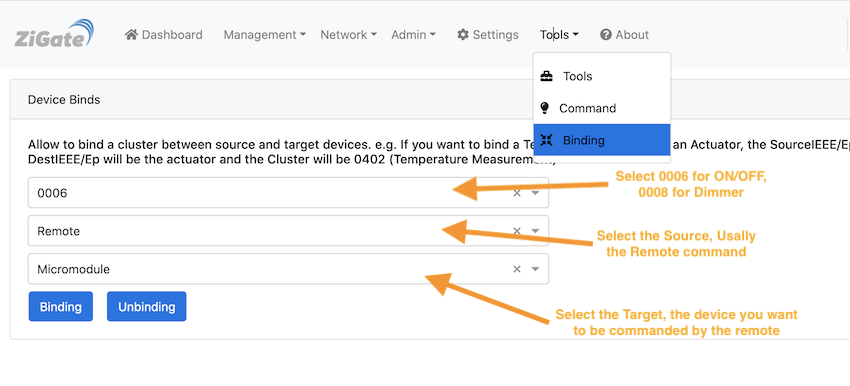
Go to Tools > Binding (see WebUI Tools).
-
Select the cluster. The list only shows the clusters that your devices have, among:
Cluster
Use
0006 On/Offswitch on and off
0008 Level Controldim
0102 Windows Coveringopen, close, stop a cover
0201 Thermostatthermostat
0300 Colour Controlcolor and color temperature
0402 Temperature Measurementsend the temperature, for example from a sensor to a thermostat valve
- Select the source device: the one that triggers the action (the switch, the remote, the sensor).
- Select the target device: the one that is commanded.
- If the source is a battery device, wake it up (press one of its buttons) just before the next step, so that it receives the request.
- Click Binding.
To remove a binding, select the same cluster, source and target and click Unbinding.
Devices with several endpoints
A device with several buttons or outputs has one endpoint per button or output, and one widget per endpoint. The endpoint is the number at the end of the widget name. For example, a Legrand double remote switch gets two widgets:
Double gangs remote switch_LegrandSelector-000474000082702a-01
Double gangs remote switch_LegrandSelector-000474000082702a-02
Each endpoint is one button. Press a button and see which widget changes to know which endpoint it is, then select that endpoint as source (or target).
Example: Legrand double remote switch and micromodule
- Pair the micromodule, and check that you can switch it from Domoticz. It has one widget, for example
Micromodule switch_Switch-00047400001f09a4-01.
- Pair the double remote switch, and check that pressing its buttons updates its two widgets (
-01 and -02).
- In Tools > Binding, select the cluster
0006, the remote endpoint of the button you want (for example 01) as source, the micromodule as target, wake the remote, and click Binding.
- That button now switches the micromodule directly. With a dimmer as target, add a second binding with the cluster
0008 to dim it too.
The Legrand Remote Shutter doesn’t accept bindings.
Bind to a group
A source can also be bound to a Zigbee group (see Manage Zigbee groups): its commands then go to all the devices of the group. The WebUI doesn’t offer it; use the REST API (see Use the plugin tools):
curl -X PUT http://127.0.0.1:9440/rest-z4d/1/binding-group \
     -d '{"sourceIeee": "000474000082702a", "sourceEp": "01", "groupId": "1001", "cluster": "0006"}'
unbinding-group, with the same data, removes it.
Check the bindings of a device
The plugin can read the binding table of a device, also through the REST API only. With the short address (NwkId) of the device:
curl http://127.0.0.1:9440/rest-z4d/1/binding-table-req/<NwkId> asks the device for its binding table.- A few seconds later,
curl http://127.0.0.1:9440/rest-z4d/1/binding-table-disp/<NwkId> displays it.
Replace 9440 with the port set in the plugin hardware parameters if you changed it.
Bind two devices
What a binding is
A binding links two devices directly: the source device (a switch, a remote, a sensor) sends its commands or its reports straight to the target device (a light, a micromodule, a thermostat), without going through Domoticz. For example, a wall switch bound to a micromodule switches it on and off even when Domoticz is stopped.
The binding is stored in the source device, for one cluster (one type of command): to bind several clusters, make one binding per cluster.
Not all devices support bindings: it depends on the firmware of the source device. Some devices accept a binding but ignore it.
The messages from the source to the target travel through the Zigbee network. If the source is a battery device whose parent is the coordinator, its messages go through the coordinator: the coordinator must be running (but not Domoticz). See Mesh graph to find the parent of a device.
Before you start
- Pair both devices (see Add a new device) and check that each one works from Domoticz.
- Give each device a friendly name in Management > Device Management (see WebUI Management): the binding page lists the devices by name.
Create a binding
-
Go to Tools > Binding (see WebUI Tools).
-
Select the cluster. The list only shows the clusters that your devices have, among:
Cluster Use 0006On/Offswitch on and off 0008Level Controldim 0102Windows Coveringopen, close, stop a cover 0201Thermostatthermostat 0300Colour Controlcolor and color temperature 0402Temperature Measurementsend the temperature, for example from a sensor to a thermostat valve - Select the source device: the one that triggers the action (the switch, the remote, the sensor).
- Select the target device: the one that is commanded.
- If the source is a battery device, wake it up (press one of its buttons) just before the next step, so that it receives the request.
- Click Binding.
To remove a binding, select the same cluster, source and target and click Unbinding.
Devices with several endpoints
A device with several buttons or outputs has one endpoint per button or output, and one widget per endpoint. The endpoint is the number at the end of the widget name. For example, a Legrand double remote switch gets two widgets:
Double gangs remote switch_LegrandSelector-000474000082702a-01
Double gangs remote switch_LegrandSelector-000474000082702a-02
Each endpoint is one button. Press a button and see which widget changes to know which endpoint it is, then select that endpoint as source (or target).
Example: Legrand double remote switch and micromodule
- Pair the micromodule, and check that you can switch it from Domoticz. It has one widget, for example
Micromodule switch_Switch-00047400001f09a4-01. - Pair the double remote switch, and check that pressing its buttons updates its two widgets (
-01and-02). - In Tools > Binding, select the cluster
0006, the remote endpoint of the button you want (for example01) as source, the micromodule as target, wake the remote, and click Binding. - That button now switches the micromodule directly. With a dimmer as target, add a second binding with the cluster
0008to dim it too.
The Legrand Remote Shutter doesn’t accept bindings.
Bind to a group
A source can also be bound to a Zigbee group (see Manage Zigbee groups): its commands then go to all the devices of the group. The WebUI doesn’t offer it; use the REST API (see Use the plugin tools):
curl -X PUT http://127.0.0.1:9440/rest-z4d/1/binding-group \
-d '{"sourceIeee": "000474000082702a", "sourceEp": "01", "groupId": "1001", "cluster": "0006"}'
unbinding-group, with the same data, removes it.
Check the bindings of a device
The plugin can read the binding table of a device, also through the REST API only. With the short address (NwkId) of the device:
curl http://127.0.0.1:9440/rest-z4d/1/binding-table-req/<NwkId>asks the device for its binding table.- A few seconds later,
curl http://127.0.0.1:9440/rest-z4d/1/binding-table-disp/<NwkId>displays it.
Replace 9440 with the port set in the plugin hardware parameters if you changed it.