 ZigBeeForDomoticZ plugin Wiki
Plugin configuration
This is step 3 of the installation: open the plugin WebUI and check its settings. You should have finished Step 1: Plugin installation and Step 2: Plugin settings.
Open the WebUI
The plugin has its own web interface (WebUI), separate from the Domoticz one. It gives access to:
- a dashboard of the plugin, the coordinator and the devices;
- device and group management;
- the network topology and the radio interference level;
- the administration of the coordinator, the plugin and the devices (pairing, firmware updates…);
- the plugin settings;
- tools to send commands to devices, bind them, debug and see the errors.
Open http://<Domoticz server address>:9440/z4d/ in your browser, where 9440 is the Plugin WebUI port set in the plugin hardware. On the Domoticz server itself: http://127.0.0.1:9440/z4d/.
By default the plugin also adds an entry, with the name of the plugin hardware, to the Domoticz Custom menu, which opens the WebUI inside Domoticz (see Step 4: Plugin integration).
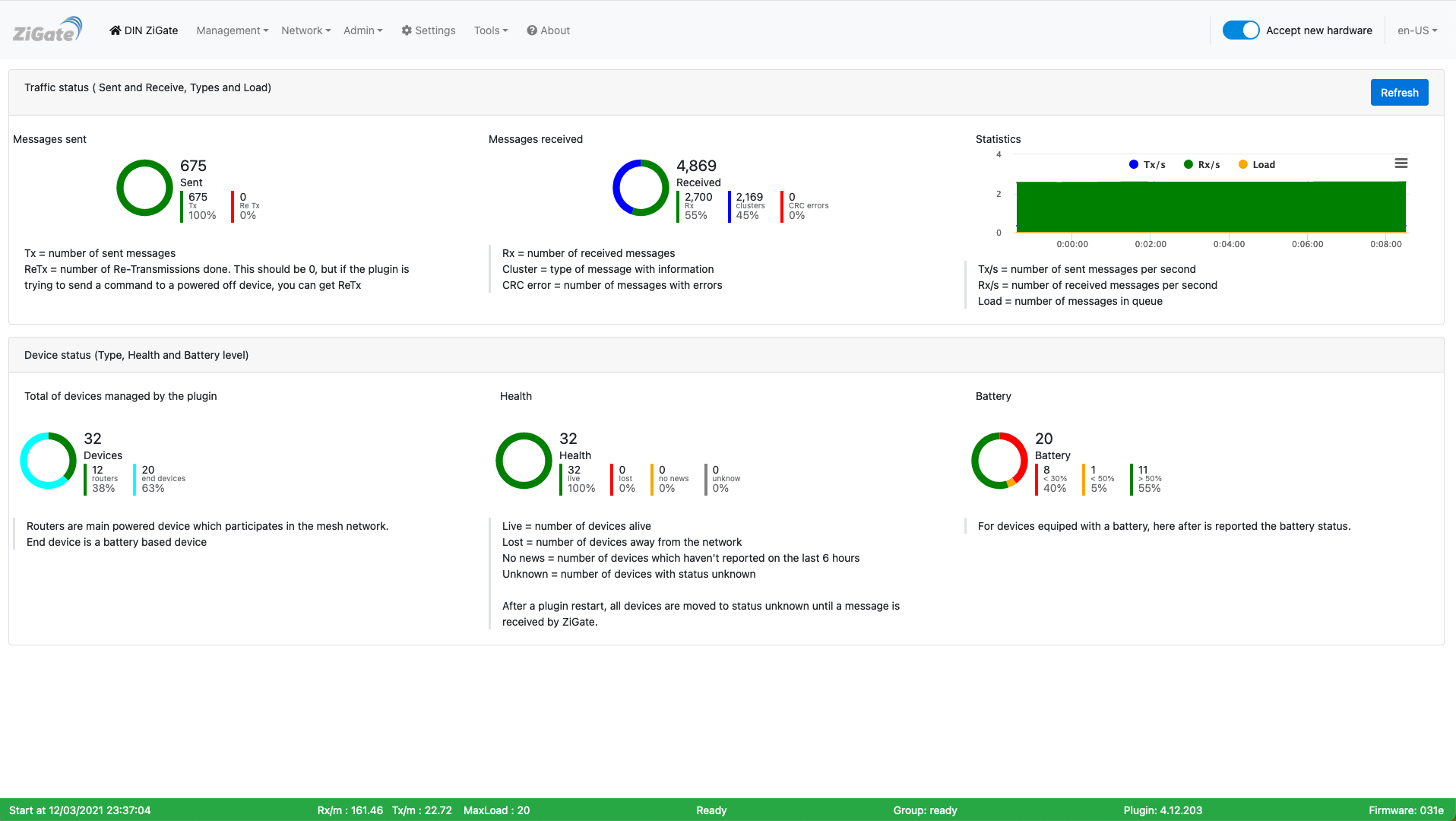 This picture may have changed since this documentation was written.
If the WebUI doesn’t open:
- check that you use the Plugin WebUI port of the plugin hardware (each plugin instance has its own port);
- check that the plugin is started (Domoticz log) and that a firewall doesn’t block the port;
- if the Plugin WebUI port is
127.0.0.1:9440, the WebUI is only reachable from the Domoticz server itself (or through a reverse proxy).
Security
The WebUI and its REST API have no login: anyone who can reach the port can manage your Zigbee network. Don’t open the port to the Internet. To reach the WebUI from outside:
- restrict the WebUI to the local machine with a Plugin WebUI port of
127.0.0.1:9440, and put it behind a reverse proxy that asks for a login (see Reverse proxy with Caddy, Reverse proxy with Apache 2);
- the WebUI can also be served over HTTPS by the plugin itself, with the
SSLCertificate and SSLPrivateKey settings (see WebUI Settings). This encrypts the traffic but doesn’t add a login.
See also the security notes of the REST API.
Check the settings
Go to the Settings page of the WebUI (see WebUI Settings). The defaults suit most installations; switch Advanced settings on to see all of them. A setting marked plugin restart takes effect after a restart: the Restart needed indicator blinks in the menu bar until you restart the plugin (Admin > Plugin).
Find your way in the WebUI
- The menu bar: the pages, the Accept new hardware switch that opens the network for pairing, and the indicators (restart needed, errors). See General presentation.
- The bar at the bottom of every page: start time, messages per second, MaxLoad (a value above 5 can be a sign of congestion, often caused by devices polled too often), plugin state, plugin and coordinator firmware versions. See The footer.
- The other pages are described in the plugin Web interface section.
Next step: Step 4: Plugin integration, then pair your devices.
Plugin configuration
This is step 3 of the installation: open the plugin WebUI and check its settings. You should have finished Step 1: Plugin installation and Step 2: Plugin settings.
Open the WebUI
The plugin has its own web interface (WebUI), separate from the Domoticz one. It gives access to:
- a dashboard of the plugin, the coordinator and the devices;
- device and group management;
- the network topology and the radio interference level;
- the administration of the coordinator, the plugin and the devices (pairing, firmware updates…);
- the plugin settings;
- tools to send commands to devices, bind them, debug and see the errors.
Open http://<Domoticz server address>:9440/z4d/ in your browser, where 9440 is the Plugin WebUI port set in the plugin hardware. On the Domoticz server itself: http://127.0.0.1:9440/z4d/.
By default the plugin also adds an entry, with the name of the plugin hardware, to the Domoticz Custom menu, which opens the WebUI inside Domoticz (see Step 4: Plugin integration).
This picture may have changed since this documentation was written.
If the WebUI doesn’t open:
- check that you use the Plugin WebUI port of the plugin hardware (each plugin instance has its own port);
- check that the plugin is started (Domoticz log) and that a firewall doesn’t block the port;
- if the Plugin WebUI port is
127.0.0.1:9440, the WebUI is only reachable from the Domoticz server itself (or through a reverse proxy).
Security
The WebUI and its REST API have no login: anyone who can reach the port can manage your Zigbee network. Don’t open the port to the Internet. To reach the WebUI from outside:
- restrict the WebUI to the local machine with a Plugin WebUI port of
127.0.0.1:9440, and put it behind a reverse proxy that asks for a login (see Reverse proxy with Caddy, Reverse proxy with Apache 2); - the WebUI can also be served over HTTPS by the plugin itself, with the
SSLCertificateandSSLPrivateKeysettings (see WebUI Settings). This encrypts the traffic but doesn’t add a login.
See also the security notes of the REST API.
Check the settings
Go to the Settings page of the WebUI (see WebUI Settings). The defaults suit most installations; switch Advanced settings on to see all of them. A setting marked plugin restart takes effect after a restart: the Restart needed indicator blinks in the menu bar until you restart the plugin (Admin > Plugin).
Find your way in the WebUI
- The menu bar: the pages, the Accept new hardware switch that opens the network for pairing, and the indicators (restart needed, errors). See General presentation.
- The bar at the bottom of every page: start time, messages per second, MaxLoad (a value above 5 can be a sign of congestion, often caused by devices polled too often), plugin state, plugin and coordinator firmware versions. See The footer.
- The other pages are described in the plugin Web interface section.
Next step: Step 4: Plugin integration, then pair your devices.