 ZigBeeForDomoticZ plugin Wiki
Dealing with a non-optimized device
Optimized and non-optimized devices
A device is optimized (or certified) when the plugin has a configuration file for its model, in the z4d-certified-devices database: the widgets to create, the reporting to set up, the device-specific decoding are known and tested.
A device is non-optimized when no work has been done yet to integrate its model. The plugin then relies on the Zigbee standard: during pairing it discovers what the device offers (endpoints and clusters: on/off, level, color, window covering, temperature…) and creates widgets from that.
You can see which devices are optimized:
- on the Dashboard, in the Optimized devices chart (see WebUI Dashboard);
- in Management > Devices, under the model of each device: Optimized in green, Not optimized in orange; the Not optimized filter lists them (see WebUI Management). Before plugin 9.1.009: the green or orange icon of the Optimized column;
- in Tools > Data, with Non-optimised devices (Tools > Tools, Non-optimized devices before plugin 9.1.009), which lists the discovery data of every non-optimized device (see Use the plugin tools).
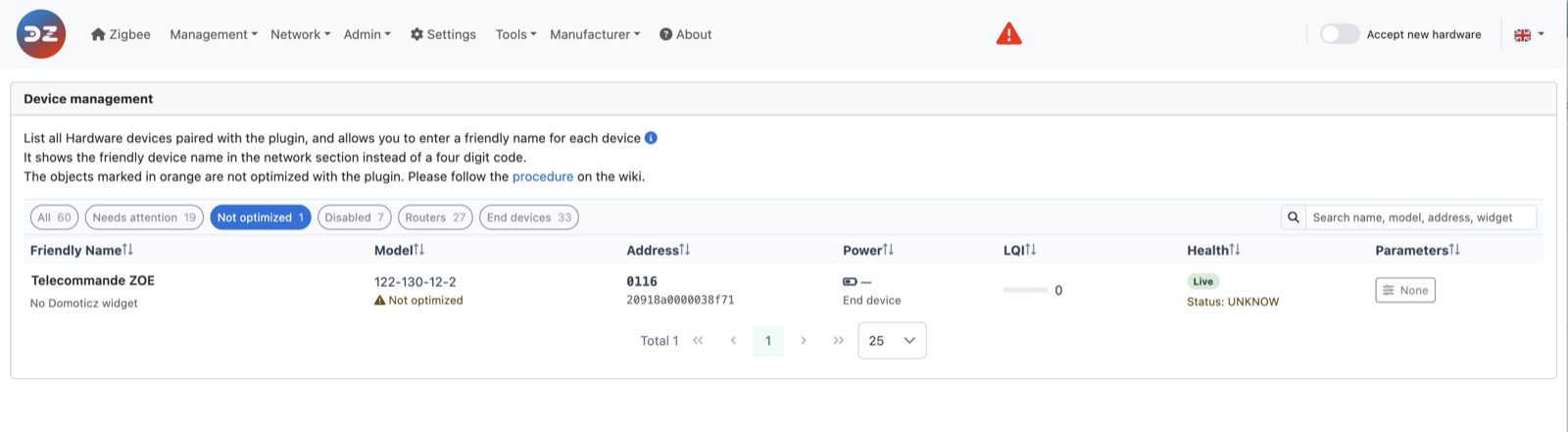
After pairing a non-optimized device
Two cases:
- The device doesn’t work, or only partly: no widget is created, a widget is missing (for example a switch and a level but no color), or the values are wrong. An integration work is needed to make it work, if the device is compatible.
- The device works as expected: it is still worth checking that the discovery went well, and whether there is something to improve (reporting, widgets, battery…). Non-optimized devices may also generate unexpected traffic.
In both cases, sharing the device data helps get the device optimized, for you and for the other users.
Ask for the device to be optimized
-
Go to Management > Devices, click the device row to open its details, and click Copy device info (before plugin 9.1.009: click the orange icon of the device in the Optimized column). Its discovery data (what the plugin learned during pairing) is copied to the clipboard. This is the minimum needed to work on the device.
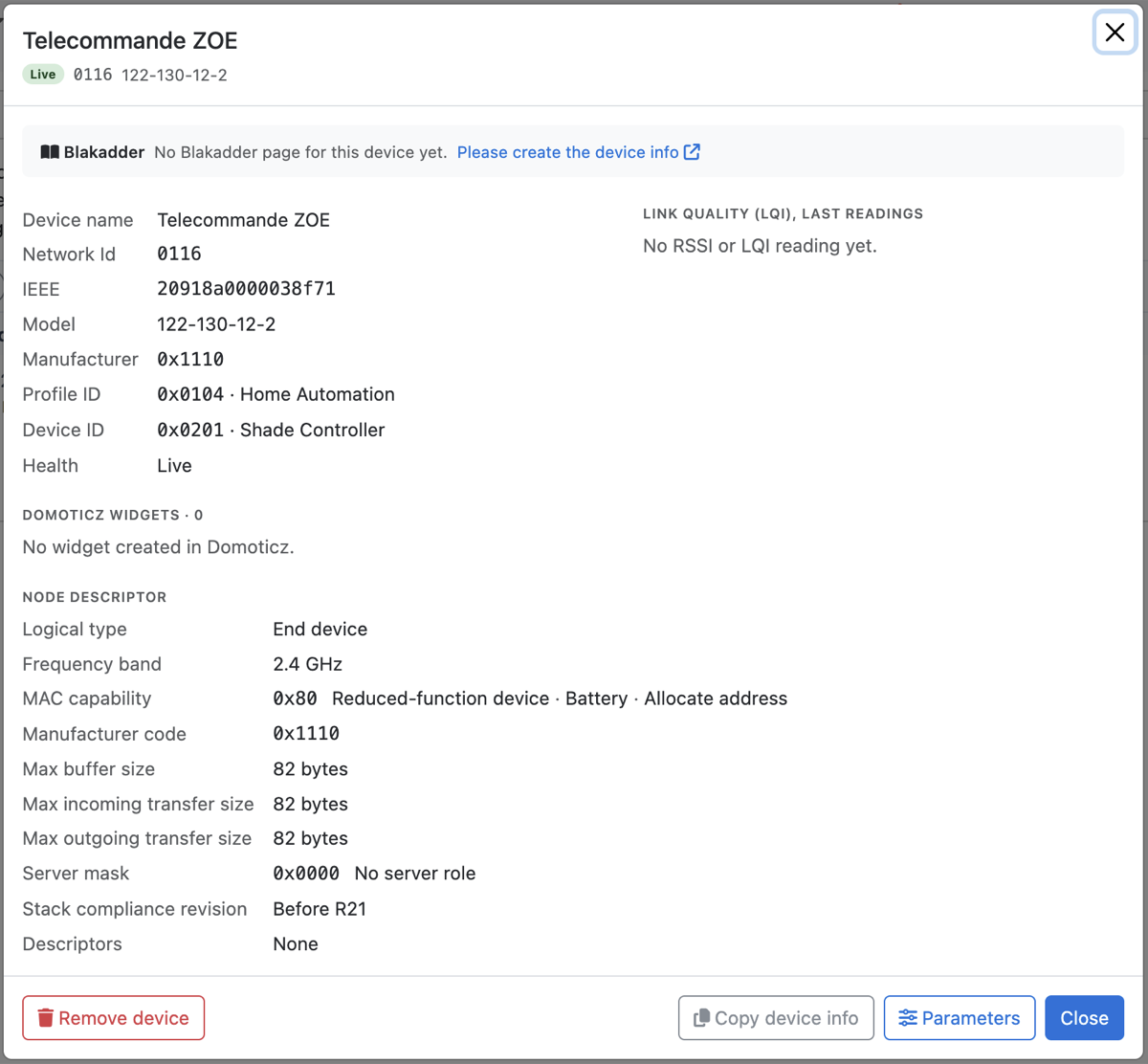
If the details show Please create the device info on the Blakadder line, you can also add the device to zigbee.blakadder.com.
- Create an issue on GitHub: request a certified device model.
- Paste the discovery data, and add:
- the product name and brand;
- a link to the product page, or where you bought it;
- what works, what doesn’t, and what you expect;
- the Domoticz log of the pairing, if you have it.
If asked, also download the full device data: Tools > Data, Devices (raw), Download (it saves a z4d-zdevice-raw.json file; before plugin 9.1.009: Tools > Tools, Plugin Raw Devices, then Export, which saves export.json).
Fix it yourself
You can write the configuration file of the device yourself and put it in the Conf/Local-Devices folder of the plugin, where updates don’t touch it. See:
- Get devices well integrated with the plugin (device customization);
- Integrate Tuya TS0601 devices with the plugin;
- Model name resolution and
Conf/Local-Devices precedence.
Please share the file in the issue, so that it can be added to the certified database for everyone.
Dealing with a non-optimized device
Optimized and non-optimized devices
A device is optimized (or certified) when the plugin has a configuration file for its model, in the z4d-certified-devices database: the widgets to create, the reporting to set up, the device-specific decoding are known and tested.
A device is non-optimized when no work has been done yet to integrate its model. The plugin then relies on the Zigbee standard: during pairing it discovers what the device offers (endpoints and clusters: on/off, level, color, window covering, temperature…) and creates widgets from that.
You can see which devices are optimized:
- on the Dashboard, in the Optimized devices chart (see WebUI Dashboard);
- in Management > Devices, under the model of each device: Optimized in green, Not optimized in orange; the Not optimized filter lists them (see WebUI Management). Before plugin 9.1.009: the green or orange icon of the Optimized column;
- in Tools > Data, with Non-optimised devices (Tools > Tools, Non-optimized devices before plugin 9.1.009), which lists the discovery data of every non-optimized device (see Use the plugin tools).
After pairing a non-optimized device
Two cases:
- The device doesn’t work, or only partly: no widget is created, a widget is missing (for example a switch and a level but no color), or the values are wrong. An integration work is needed to make it work, if the device is compatible.
- The device works as expected: it is still worth checking that the discovery went well, and whether there is something to improve (reporting, widgets, battery…). Non-optimized devices may also generate unexpected traffic.
In both cases, sharing the device data helps get the device optimized, for you and for the other users.
Ask for the device to be optimized
-
Go to Management > Devices, click the device row to open its details, and click Copy device info (before plugin 9.1.009: click the orange icon of the device in the Optimized column). Its discovery data (what the plugin learned during pairing) is copied to the clipboard. This is the minimum needed to work on the device.
If the details show Please create the device info on the Blakadder line, you can also add the device to zigbee.blakadder.com.
- Create an issue on GitHub: request a certified device model.
- Paste the discovery data, and add:
- the product name and brand;
- a link to the product page, or where you bought it;
- what works, what doesn’t, and what you expect;
- the Domoticz log of the pairing, if you have it.
If asked, also download the full device data: Tools > Data, Devices (raw), Download (it saves a z4d-zdevice-raw.json file; before plugin 9.1.009: Tools > Tools, Plugin Raw Devices, then Export, which saves export.json).
Fix it yourself
You can write the configuration file of the device yourself and put it in the Conf/Local-Devices folder of the plugin, where updates don’t touch it. See:
- Get devices well integrated with the plugin (device customization);
- Integrate Tuya TS0601 devices with the plugin;
- Model name resolution and
Conf/Local-Devicesprecedence.
Please share the file in the issue, so that it can be added to the certified database for everyone.