 ZigBeeForDomoticZ plugin Wiki
Pair a Green Power device
This how-to explains how to pair a Zigbee Green Power device (switch, remote, sensor) with the plugin, on the Admin > Provisionning > Zigbee Green Power page of the WebUI.
What is different with Green Power
A Green Power device is built to use as little energy as possible: some run on the energy of the button press itself, others on a battery that lasts for years. To save that energy:
- it does not join the Zigbee network like other devices: it only sends short frames, and the coordinator (or a router close to it) picks them up;
- it does not listen: it never gets an answer. Nothing tells the device that it is paired, so you have to take it out of its pairing mode yourself;
- it sends on one channel. Some devices start their pairing mode on channel 11 and move to the next channel at each press, until they reach the channel of your network;
- it tells little about itself. Many devices give neither their manufacturer nor their model, only a device type such as On/Off switch, even when they also dim. So you choose the device type before pairing.
The plugin learns about a Green Power device from the pairing request (Commissioning) the device sends in its pairing mode, while the Green Power pairing is open. The Green Power log of the page shows, as it happens, what the network hears.
Before you start
- Let Domoticz accept new devices, as for any pairing: see Add a new device.
- Know your network channel. The page shows it under the pairing buttons: Network on channel N. A device you set to a channel by hand must use this one. Green Power devices use channels 11 to 26.
- Coordinator. Tested with a Silicon Labs (EZSP) coordinator. With a deCONZ (ConBee, RaspBee) coordinator, the plugin opens the Green Power pairing too, but it has not been tested yet: please report how it goes. A Texas Instruments (Z-Stack, ZNP) coordinator cannot receive Green Power frames at all: it would need a router with full Green Power support between the device and the coordinator (zigpy discussion #1955). Green Power is not supported with a Z-Stack coordinator. Other coordinators have not been tested yet.
The Zigbee Green Power page
Admin > Provisionning has two pages: Zigbee & Zigbee 3.0 for the other devices (see Add a new device), and Zigbee Green Power.
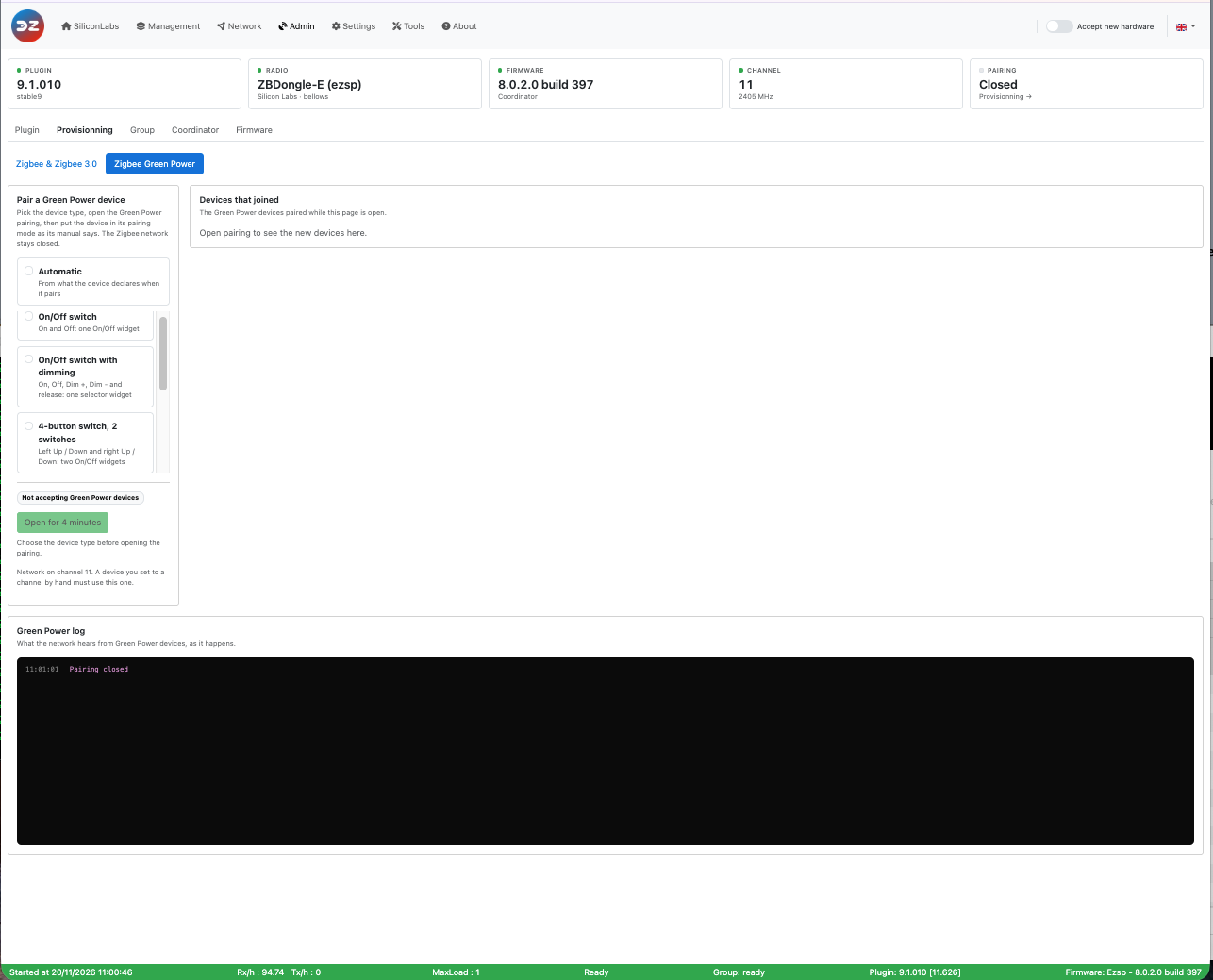
- Pair a Green Power device: the device type, the Open for 4 minutes and Stop buttons, the time left, and the network channel. The Green Power pairing opens for Green Power devices only: the Zigbee network stays closed.
- Devices that joined: the Green Power devices paired while the page is open, with their model, their Green Power device type and their widgets.
- Green Power log: what the network hears from Green Power devices and the pairing steps, newest line at the bottom.
Device types
Choose the type before opening the pairing: the device paired during that pairing gets it. No type is selected when the page opens, and Open for 4 minutes stays disabled until you choose one.
Type
Widget
For
On/Off switch
One On/Off switch
A switch with an On and an Off button
On/Off switch with dimming
One selector: Off, On, Dim +, Dim -, Stop
A switch that also dims while a button is held: Dim + and Dim - when held, Stop when released
4-button switch, 2 switches
Two On/Off switches
A switch with two rockers, left and right, each with an Up and a Down button
4-button switch, 3 switches
Three On/Off switches
The same, plus a third switch for both rockers pressed together
4-button switch, single rocker
One On/Off switch
The same switch fitted with one wide rocker, Up and Down
Automatic
From what the device declares
A device that gives its model or its commands
A device keeps its type when it is paired again. A paired device that got no widget (no configuration matched it) can be given its type afterwards, without a new pairing: see Check a paired device. To change the type of a device that has widgets, remove it, then pair it again with the new type.
Pairing
- Open the WebUI, Admin > Provisionning > Zigbee Green Power.
- Choose the device type. Open for 4 minutes stays disabled until you do.
- Click Open for 4 minutes. The page shows Accepting Green Power devices, the time left and Pairing as: the type you chose; the log shows Pairing opened.
- Put the device in its pairing mode, as its manual says (see the Sunricher switch and the NodOn switch for examples).
- Watch the Green Power log: each frame the network hears is listed with its time, the device ID (for example
0xC220BD02), what it sent and the signal strength.
- As soon as the log shows Paired, take the device out of its pairing mode, as its manual says (often: press another button). Left in its pairing mode, some devices change channel at the next press, and the network no longer hears them.
- The log then shows Widgets created, and the device appears in Devices that joined as Paired, with its model and its widget.
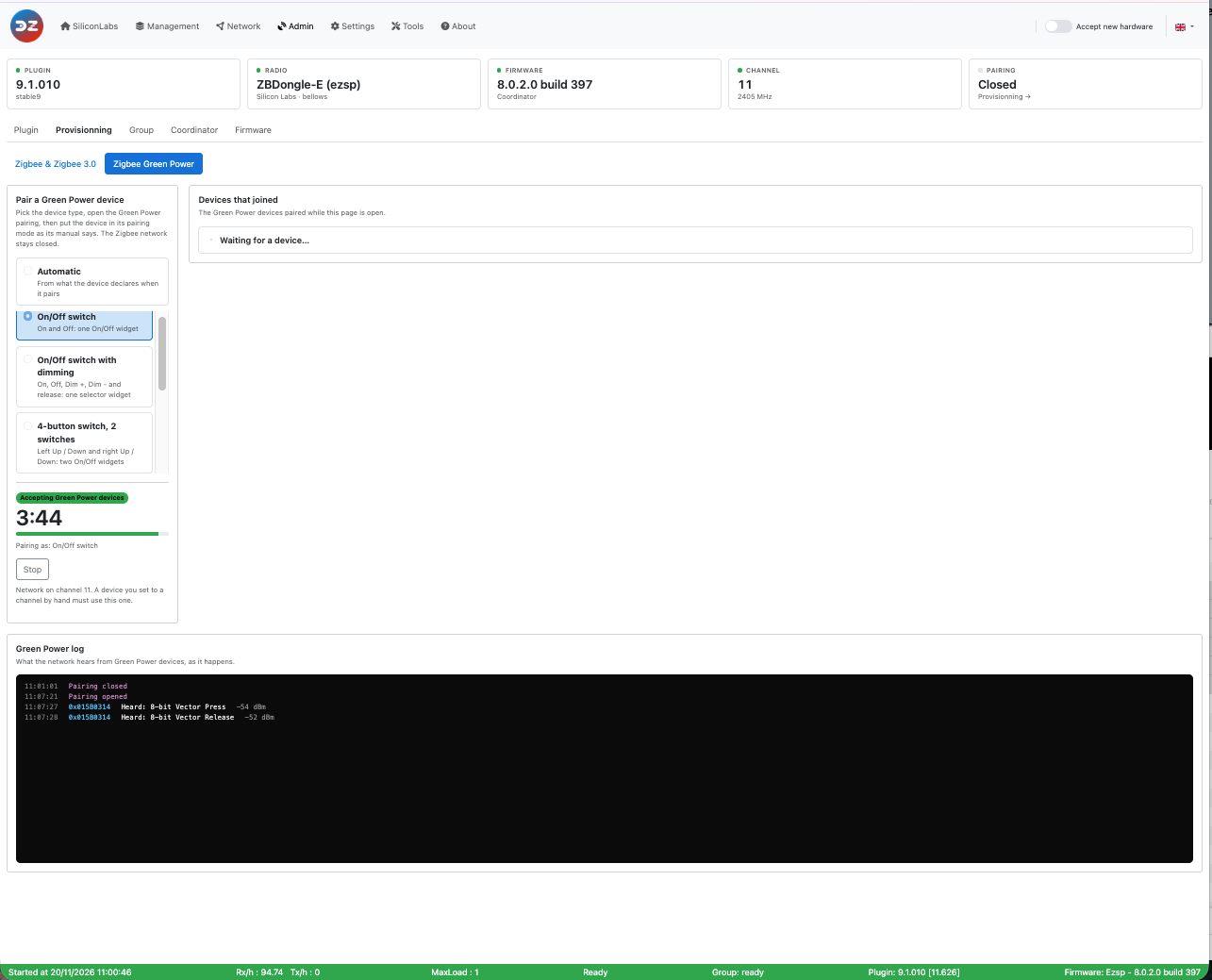
What the Green Power log tells you
Line
Meaning
What to do
Heard: Commissioning · Pairing request heard on the network’s channel
The device is in its pairing mode, on the right channel
Wait for Paired
Paired · Now take the device out of its pairing mode
The plugin has paired the device
Take the device out of its pairing mode, now
Widgets created (…)
The Domoticz widget exists
Done
Heard: On (or another command) · The device reaches the network, but is not in its pairing mode
A device not paired yet, on the right channel, used normally
Put it in its pairing mode
Heard: Commissioning · Pairing request refused: pairing is closed
The Green Power pairing was not open
Open it, then repeat
Heard an encrypted frame · A device not paired yet
A device not paired yet, used normally
Put it in its pairing mode
Paired, but no widget for this device
The device is paired, but no configuration gives it a widget (with Automatic)
Pair it again with a device type, or report it with the plugin log
The device is paired but still in its pairing mode
A paired device still sends pairing requests
Take it out of its pairing mode
Heard: Off, Heard: Move Up With On/Off… without a hint
A paired device used normally (listed while the pairing is open)
Nothing
Nothing at all
The network does not hear the device
Check the channel, move closer to the coordinator, check the pairing mode
Green Power with the Zigbee pairing
The setting Accept Green Power devices when pairing is open (GreenPowerEnable, Settings, Available services, card Features; before plugin 9.1.010: advanced, Zigpy section) only concerns the Zigbee & Zigbee 3.0 page and the Accept new hardware switch of the menu bar: when it is on, opening the Zigbee pairing also opens the Green Power pairing, without a device type (Automatic). The Green Power page does not need it.
Sunricher ZGP2801K2-DIM
Green Power switch with an On and an Off button: a short press sends On or Off, holding a button dims up or down until it is released. Tested on 7 November 2026 with a Silicon Labs coordinator on channel 11.
- On the Zigbee Green Power page, choose On/Off switch with dimming, click Open for 4 minutes, and wait for Pairing opened in the log.
- Put the switch in its pairing mode, always with the On button:
- press and hold On for more than 10 seconds, then release it;
- press On once, then release it;
- press and hold On for more than 10 seconds again, then release it.
- Wait for a second, then press On, and keep pressing On every second or two.
- As soon as the log shows Paired, close the pairing mode of the switch: press Off once.
Each press of On in the pairing mode sends a pairing request and moves the switch to the next channel, starting at channel 11: keep pressing until the log shows Paired. A press of the other button ends the pairing mode.
The switch declares itself as an On/Off switch (Green Power device type 0x02) and gives neither its manufacturer nor its model, so Automatic gives it an On/Off widget only. With On/Off switch with dimming, it gets a selector: On and Off on a short press, Dim + and Dim - while On or Off is held, Stop when the button is released.
NodOn CWS-4-1-00
Battery-free wall switch with four buttons, A0 and B0 at the top, AI and BI at the bottom, on two rockers (left and right), or on one wide rocker. A Green Power Generic Switch: every button sends the same command, 8-bit Vector Press, with the button in its payload, and 8-bit Vector Release when it is released. Tested on 18 November 2026 with a Silicon Labs coordinator on channel 11.
The switch pairs on the channel of the button you hold, so check the network channel first: the Zigbee Green Power page shows it.
Hold
Channel
B0
11
A0
15
AI
20
BI
25
- On the Zigbee Green Power page, choose the type that matches how the switch is fitted:
- two rockers: 4-button switch, 2 switches (left Up / Down, right Up / Down), or 4-button switch, 3 switches to also use both rockers pressed together;
- one wide rocker: 4-button switch, single rocker.
- Click Open for 4 minutes, and wait for Pairing opened in the log.
- Press and hold the button of the network channel (B0 for channel 11) for 7 seconds or more, then release it. The log shows Heard: Commissioning, then Paired.
- Close the pairing mode of the switch: press AI and B0 together. This also confirms the channel to the switch.
If the network is on another channel than 11, 15, 20 or 25, the manual of the switch gives no direct pairing procedure.
A switch that was paired before, here or with another system, keeps sending normal presses until it is put in its pairing mode: the log shows Heard: 8-bit Vector Press with The device reaches the network, but is not in its pairing mode. Short presses never pair it: hold the channel button for 7 seconds.
The switch declares neither its manufacturer, its model nor its commands, so Automatic gives it no widget: choose one of the three types. Each press updates its switch in Domoticz, also when the switch already shows that state (Off pressed on a switch that is Off), so a Domoticz event runs at each press.
Check a paired device
-
Management > Devices lists the Green Power devices with the other devices; the Green Power chip shows them alone. Each row shows the model and the widgets, the source ID and the IEEE, the LQI of the last frame, and when the device was last heard. Open a Green Power device to see its details: source ID, IEEE, alias short address, Green Power device type, manufacturer and model ID, commands, the device type it was paired as, its widgets, the security level, the frame counter, when it was commissioned and last heard, and the LQI. There is no name and no parameter to change there.
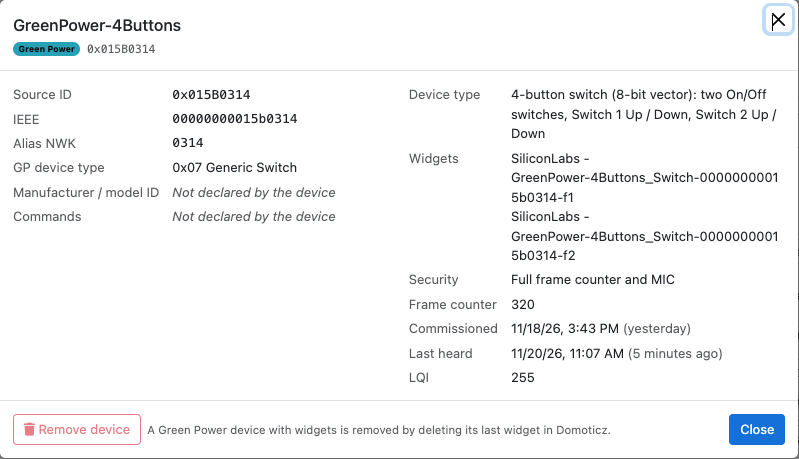
On a device with widgets, Remove device is disabled: such a device is removed by deleting its last widget in Domoticz.
- A device without widgets is marked No widget in the list. Its details window lets you choose its device type: click Create the widgets, and the plugin creates them within a minute, with no new pairing. The same window can remove it (see Remove a Green Power device).
- Dashboard: the Green Power devices have a Green Power segment of their own in Plugin devices and in Type of devices. The plugin never sends a Green Power device anything, so it has no health status, and a battery-free switch can stay silent for days. So Devices live counts a Green Power device as fine, never as a problem: one Green Power switch alone shows 1 / 1, with including Green Power: 1 (not polled).
- Tools > Data > Green Power devices (raw) shows what the plugin keeps for each Green Power device: its ID, its device type, the security level, the last frame counter, its model and its widgets. The security key of the device is never shown.
A Green Power device is not listed in Tools > Data > Device names or Devices (raw), which show the Zigbee devices only.
A Green Power device never appears in a topology report (Network > Topology, Network > Mesh graph). It does not join the network: it has no neighbour table and no route, and no router lists it as a neighbour. That is expected.
Remove a Green Power device
Delete its widget in Domoticz (Setup > Devices). When the last widget of a Green Power device is deleted, the plugin removes the device from its list and from the network.
A Green Power device without widgets has nothing to delete in Domoticz: remove it from its details window, in Management > Devices (plugin 9.1.010 and later).
To pair it again, follow Pairing from the start.
Pair a Green Power device
This how-to explains how to pair a Zigbee Green Power device (switch, remote, sensor) with the plugin, on the Admin > Provisionning > Zigbee Green Power page of the WebUI.
What is different with Green Power
A Green Power device is built to use as little energy as possible: some run on the energy of the button press itself, others on a battery that lasts for years. To save that energy:
- it does not join the Zigbee network like other devices: it only sends short frames, and the coordinator (or a router close to it) picks them up;
- it does not listen: it never gets an answer. Nothing tells the device that it is paired, so you have to take it out of its pairing mode yourself;
- it sends on one channel. Some devices start their pairing mode on channel 11 and move to the next channel at each press, until they reach the channel of your network;
- it tells little about itself. Many devices give neither their manufacturer nor their model, only a device type such as On/Off switch, even when they also dim. So you choose the device type before pairing.
The plugin learns about a Green Power device from the pairing request (Commissioning) the device sends in its pairing mode, while the Green Power pairing is open. The Green Power log of the page shows, as it happens, what the network hears.
Before you start
- Let Domoticz accept new devices, as for any pairing: see Add a new device.
- Know your network channel. The page shows it under the pairing buttons: Network on channel N. A device you set to a channel by hand must use this one. Green Power devices use channels 11 to 26.
- Coordinator. Tested with a Silicon Labs (EZSP) coordinator. With a deCONZ (ConBee, RaspBee) coordinator, the plugin opens the Green Power pairing too, but it has not been tested yet: please report how it goes. A Texas Instruments (Z-Stack, ZNP) coordinator cannot receive Green Power frames at all: it would need a router with full Green Power support between the device and the coordinator (zigpy discussion #1955). Green Power is not supported with a Z-Stack coordinator. Other coordinators have not been tested yet.
The Zigbee Green Power page
Admin > Provisionning has two pages: Zigbee & Zigbee 3.0 for the other devices (see Add a new device), and Zigbee Green Power.
- Pair a Green Power device: the device type, the Open for 4 minutes and Stop buttons, the time left, and the network channel. The Green Power pairing opens for Green Power devices only: the Zigbee network stays closed.
- Devices that joined: the Green Power devices paired while the page is open, with their model, their Green Power device type and their widgets.
- Green Power log: what the network hears from Green Power devices and the pairing steps, newest line at the bottom.
Device types
Choose the type before opening the pairing: the device paired during that pairing gets it. No type is selected when the page opens, and Open for 4 minutes stays disabled until you choose one.
| Type | Widget | For |
|---|---|---|
| On/Off switch | One On/Off switch | A switch with an On and an Off button |
| On/Off switch with dimming | One selector: Off, On, Dim +, Dim -, Stop | A switch that also dims while a button is held: Dim + and Dim - when held, Stop when released |
| 4-button switch, 2 switches | Two On/Off switches | A switch with two rockers, left and right, each with an Up and a Down button |
| 4-button switch, 3 switches | Three On/Off switches | The same, plus a third switch for both rockers pressed together |
| 4-button switch, single rocker | One On/Off switch | The same switch fitted with one wide rocker, Up and Down |
| Automatic | From what the device declares | A device that gives its model or its commands |
A device keeps its type when it is paired again. A paired device that got no widget (no configuration matched it) can be given its type afterwards, without a new pairing: see Check a paired device. To change the type of a device that has widgets, remove it, then pair it again with the new type.
Pairing
- Open the WebUI, Admin > Provisionning > Zigbee Green Power.
- Choose the device type. Open for 4 minutes stays disabled until you do.
- Click Open for 4 minutes. The page shows Accepting Green Power devices, the time left and Pairing as: the type you chose; the log shows Pairing opened.
- Put the device in its pairing mode, as its manual says (see the Sunricher switch and the NodOn switch for examples).
- Watch the Green Power log: each frame the network hears is listed with its time, the device ID (for example
0xC220BD02), what it sent and the signal strength. - As soon as the log shows Paired, take the device out of its pairing mode, as its manual says (often: press another button). Left in its pairing mode, some devices change channel at the next press, and the network no longer hears them.
- The log then shows Widgets created, and the device appears in Devices that joined as Paired, with its model and its widget.
What the Green Power log tells you
| Line | Meaning | What to do |
|---|---|---|
| Heard: Commissioning · Pairing request heard on the network’s channel | The device is in its pairing mode, on the right channel | Wait for Paired |
| Paired · Now take the device out of its pairing mode | The plugin has paired the device | Take the device out of its pairing mode, now |
| Widgets created (…) | The Domoticz widget exists | Done |
| Heard: On (or another command) · The device reaches the network, but is not in its pairing mode | A device not paired yet, on the right channel, used normally | Put it in its pairing mode |
| Heard: Commissioning · Pairing request refused: pairing is closed | The Green Power pairing was not open | Open it, then repeat |
| Heard an encrypted frame · A device not paired yet | A device not paired yet, used normally | Put it in its pairing mode |
| Paired, but no widget for this device | The device is paired, but no configuration gives it a widget (with Automatic) | Pair it again with a device type, or report it with the plugin log |
| The device is paired but still in its pairing mode | A paired device still sends pairing requests | Take it out of its pairing mode |
| Heard: Off, Heard: Move Up With On/Off… without a hint | A paired device used normally (listed while the pairing is open) | Nothing |
| Nothing at all | The network does not hear the device | Check the channel, move closer to the coordinator, check the pairing mode |
Green Power with the Zigbee pairing
The setting Accept Green Power devices when pairing is open (GreenPowerEnable, Settings, Available services, card Features; before plugin 9.1.010: advanced, Zigpy section) only concerns the Zigbee & Zigbee 3.0 page and the Accept new hardware switch of the menu bar: when it is on, opening the Zigbee pairing also opens the Green Power pairing, without a device type (Automatic). The Green Power page does not need it.
Sunricher ZGP2801K2-DIM
Green Power switch with an On and an Off button: a short press sends On or Off, holding a button dims up or down until it is released. Tested on 7 November 2026 with a Silicon Labs coordinator on channel 11.
- On the Zigbee Green Power page, choose On/Off switch with dimming, click Open for 4 minutes, and wait for Pairing opened in the log.
- Put the switch in its pairing mode, always with the On button:
- press and hold On for more than 10 seconds, then release it;
- press On once, then release it;
- press and hold On for more than 10 seconds again, then release it.
- Wait for a second, then press On, and keep pressing On every second or two.
- As soon as the log shows Paired, close the pairing mode of the switch: press Off once.
Each press of On in the pairing mode sends a pairing request and moves the switch to the next channel, starting at channel 11: keep pressing until the log shows Paired. A press of the other button ends the pairing mode.
The switch declares itself as an On/Off switch (Green Power device type 0x02) and gives neither its manufacturer nor its model, so Automatic gives it an On/Off widget only. With On/Off switch with dimming, it gets a selector: On and Off on a short press, Dim + and Dim - while On or Off is held, Stop when the button is released.
NodOn CWS-4-1-00
Battery-free wall switch with four buttons, A0 and B0 at the top, AI and BI at the bottom, on two rockers (left and right), or on one wide rocker. A Green Power Generic Switch: every button sends the same command, 8-bit Vector Press, with the button in its payload, and 8-bit Vector Release when it is released. Tested on 18 November 2026 with a Silicon Labs coordinator on channel 11.
The switch pairs on the channel of the button you hold, so check the network channel first: the Zigbee Green Power page shows it.
| Hold | Channel |
|---|---|
| B0 | 11 |
| A0 | 15 |
| AI | 20 |
| BI | 25 |
- On the Zigbee Green Power page, choose the type that matches how the switch is fitted:
- two rockers: 4-button switch, 2 switches (left Up / Down, right Up / Down), or 4-button switch, 3 switches to also use both rockers pressed together;
- one wide rocker: 4-button switch, single rocker.
- Click Open for 4 minutes, and wait for Pairing opened in the log.
- Press and hold the button of the network channel (B0 for channel 11) for 7 seconds or more, then release it. The log shows Heard: Commissioning, then Paired.
- Close the pairing mode of the switch: press AI and B0 together. This also confirms the channel to the switch.
If the network is on another channel than 11, 15, 20 or 25, the manual of the switch gives no direct pairing procedure.
A switch that was paired before, here or with another system, keeps sending normal presses until it is put in its pairing mode: the log shows Heard: 8-bit Vector Press with The device reaches the network, but is not in its pairing mode. Short presses never pair it: hold the channel button for 7 seconds.
The switch declares neither its manufacturer, its model nor its commands, so Automatic gives it no widget: choose one of the three types. Each press updates its switch in Domoticz, also when the switch already shows that state (Off pressed on a switch that is Off), so a Domoticz event runs at each press.
Check a paired device
-
Management > Devices lists the Green Power devices with the other devices; the Green Power chip shows them alone. Each row shows the model and the widgets, the source ID and the IEEE, the LQI of the last frame, and when the device was last heard. Open a Green Power device to see its details: source ID, IEEE, alias short address, Green Power device type, manufacturer and model ID, commands, the device type it was paired as, its widgets, the security level, the frame counter, when it was commissioned and last heard, and the LQI. There is no name and no parameter to change there.
On a device with widgets, Remove device is disabled: such a device is removed by deleting its last widget in Domoticz.
- A device without widgets is marked No widget in the list. Its details window lets you choose its device type: click Create the widgets, and the plugin creates them within a minute, with no new pairing. The same window can remove it (see Remove a Green Power device).
- Dashboard: the Green Power devices have a Green Power segment of their own in Plugin devices and in Type of devices. The plugin never sends a Green Power device anything, so it has no health status, and a battery-free switch can stay silent for days. So Devices live counts a Green Power device as fine, never as a problem: one Green Power switch alone shows 1 / 1, with including Green Power: 1 (not polled).
- Tools > Data > Green Power devices (raw) shows what the plugin keeps for each Green Power device: its ID, its device type, the security level, the last frame counter, its model and its widgets. The security key of the device is never shown.
A Green Power device is not listed in Tools > Data > Device names or Devices (raw), which show the Zigbee devices only.
A Green Power device never appears in a topology report (Network > Topology, Network > Mesh graph). It does not join the network: it has no neighbour table and no route, and no router lists it as a neighbour. That is expected.
Remove a Green Power device
Delete its widget in Domoticz (Setup > Devices). When the last widget of a Green Power device is deleted, the plugin removes the device from its list and from the network.
A Green Power device without widgets has nothing to delete in Domoticz: remove it from its details window, in Management > Devices (plugin 9.1.010 and later).
To pair it again, follow Pairing from the start.